
The Technician App
The Whole Visit, in the Technician’s Hand
Plankmate Field is a phone app for the people in the field. They see their day, work the visit, write up what they found, get the customer’s approval and take the payment, without going back to the truck or the office. Owners and dispatchers keep using the website.
Coming to the App Store and Google Play
The app works on iPhone and Android and is being prepared for the stores. Want your technicians on it early? Email us and we will set them up. It signs in with the same email and password as the website, and only technicians can use it.
Their Day, and the Next Step Always in Reach
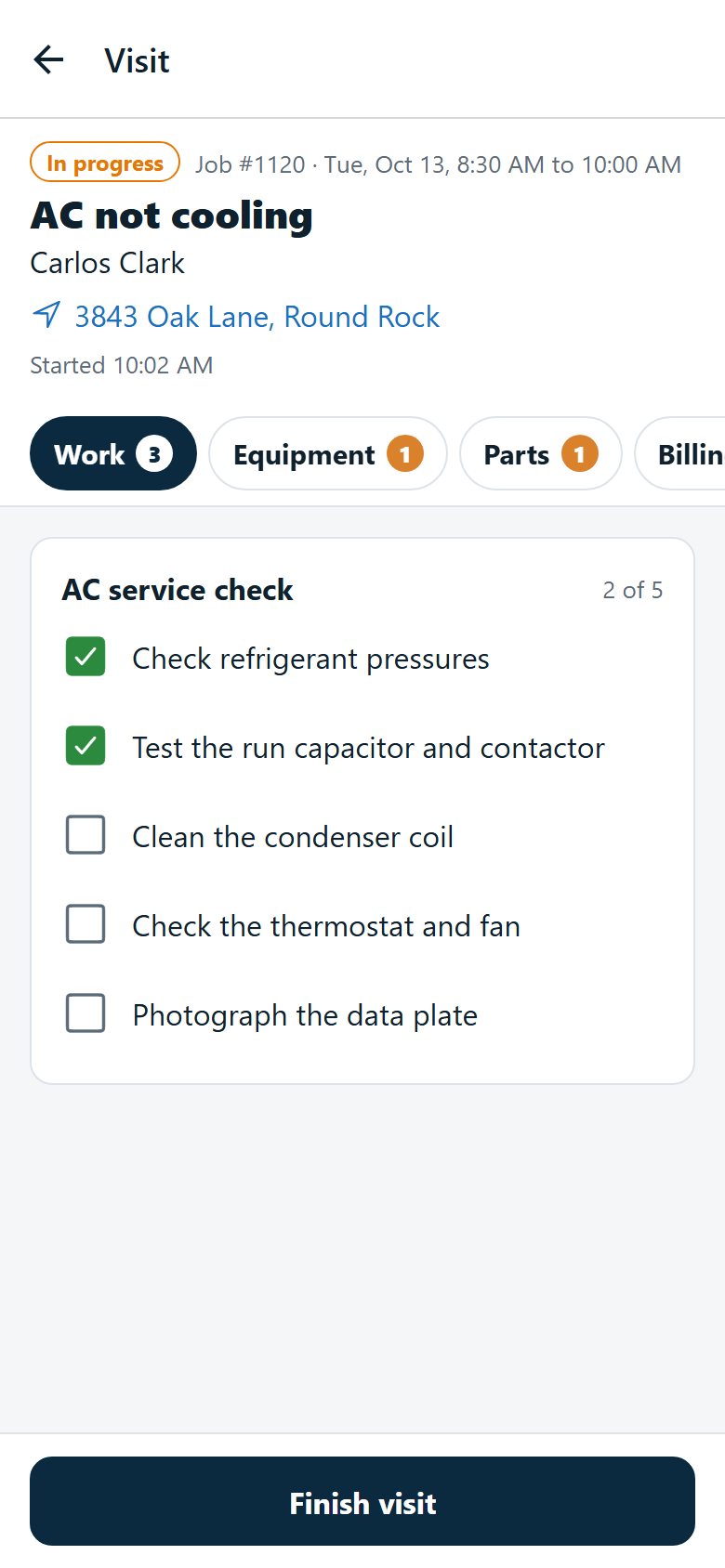
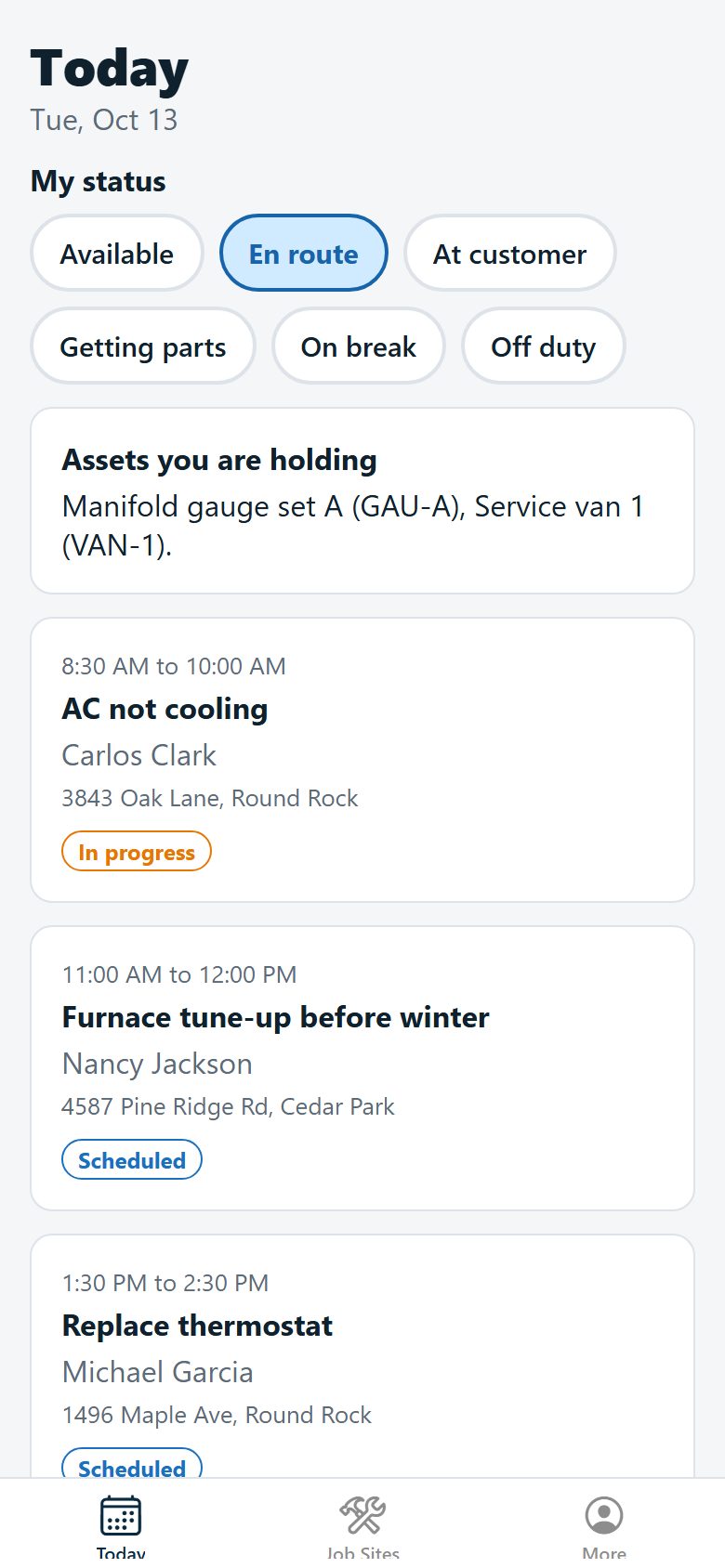
The Today list shows each visit with its time, the customer and the address. Open one and everything about the job is a tap away, with the step to take next fixed to the bottom of the screen.
- One tap to say where they are: available, en route, at the customer, getting parts, on break or off duty, which the office sees on the dispatch board
- Optional: the company assets they are holding, such as a van or a pipe camera
- Start work, on my way, I’ve arrived, I’m leaving and Finish visit, wherever they are on the screen
- The address opens in their own maps app
- Sections for the work, equipment, parts, billing and notes, each with a count of what is waiting
- Optional: lock the app with Face ID or a fingerprint
Know What Is at the Property
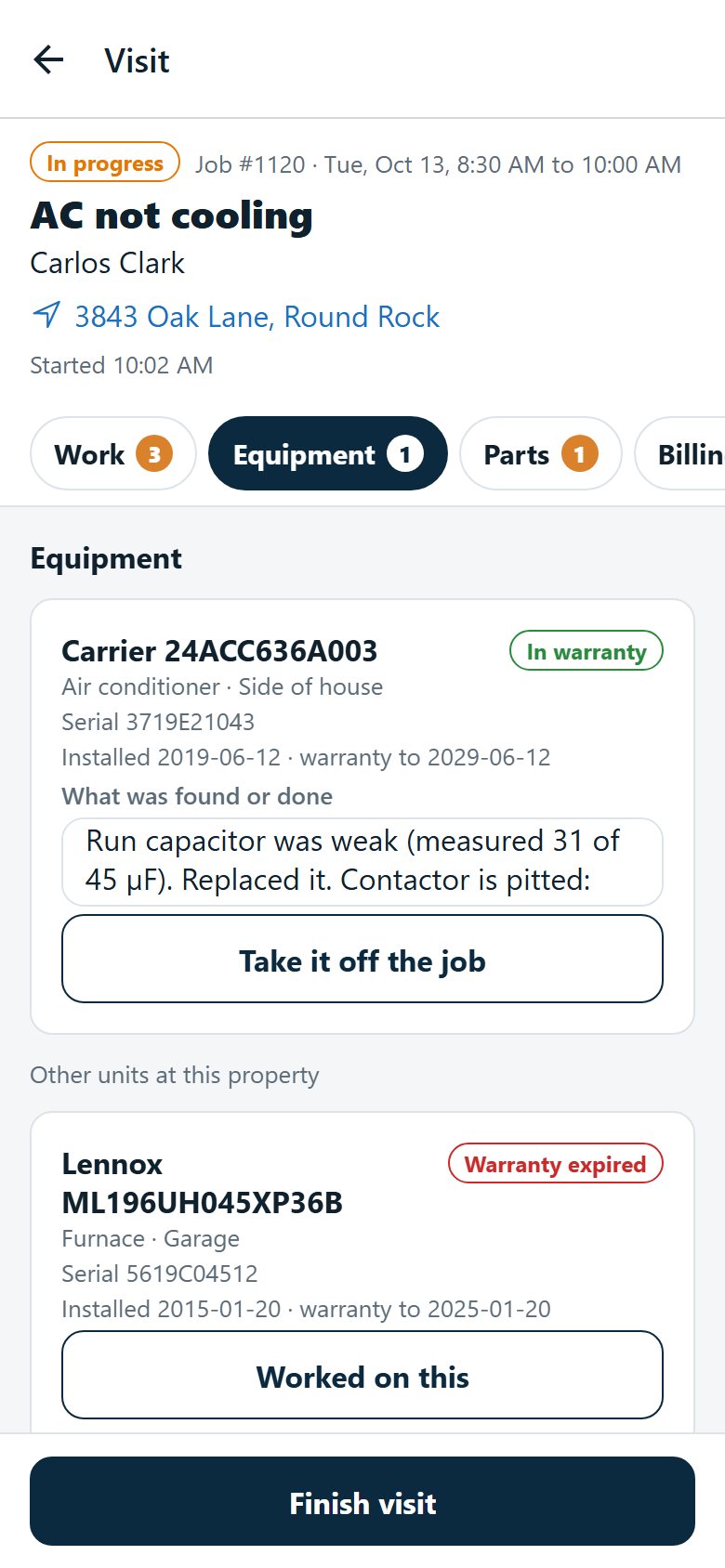
The equipment at the customer’s address is on the visit: make, model, serial number, where it is and whether it is still under warranty. They mark what they worked on and write what they found, and that goes into the unit’s service history.
- Scan the label on a unit, or the barcode of its serial number, to put it on the visit
- Add a new unit from the data plate if it is not listed
- Warranty dates show as in warranty, ending soon or expired
- Checklists to tick off on the visit, and required ones must be finished before the visit can be
Parts Come Off the Truck
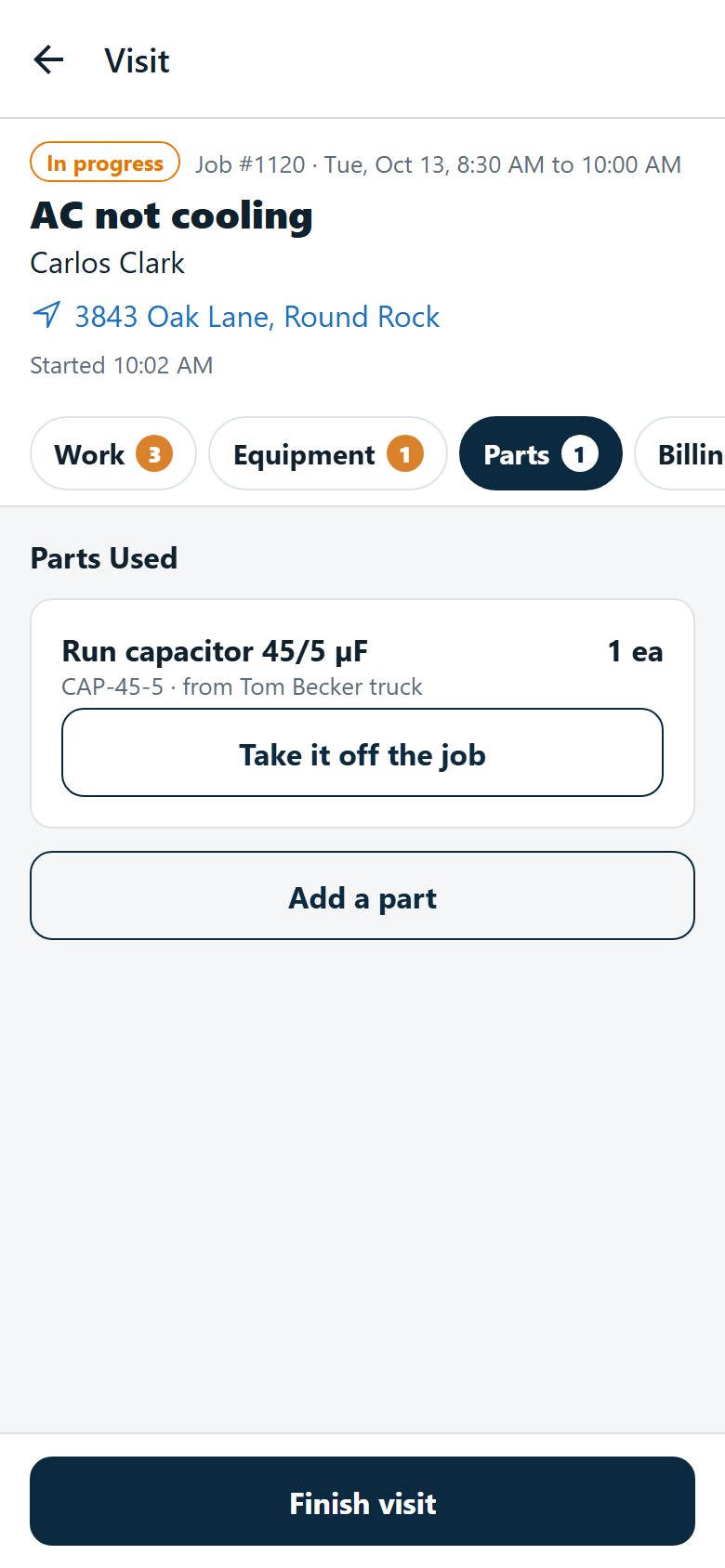
Technicians search your parts by name or SKU and add what they used from their own truck. The stock goes down, and the part is on the job to be billed.
- Tap Scan a Barcode and point the camera at the part: it is found straight away
- A technician only uses parts from their own truck, on jobs they are scheduled for
- Take a part off the job again if it was added by mistake and has not been billed
- Scan a tool or van’s tag to check it out to yourself, or hand it back
- Prices stay hidden unless you switch on quoting in the field
Notes and Photos That Stay with the Job
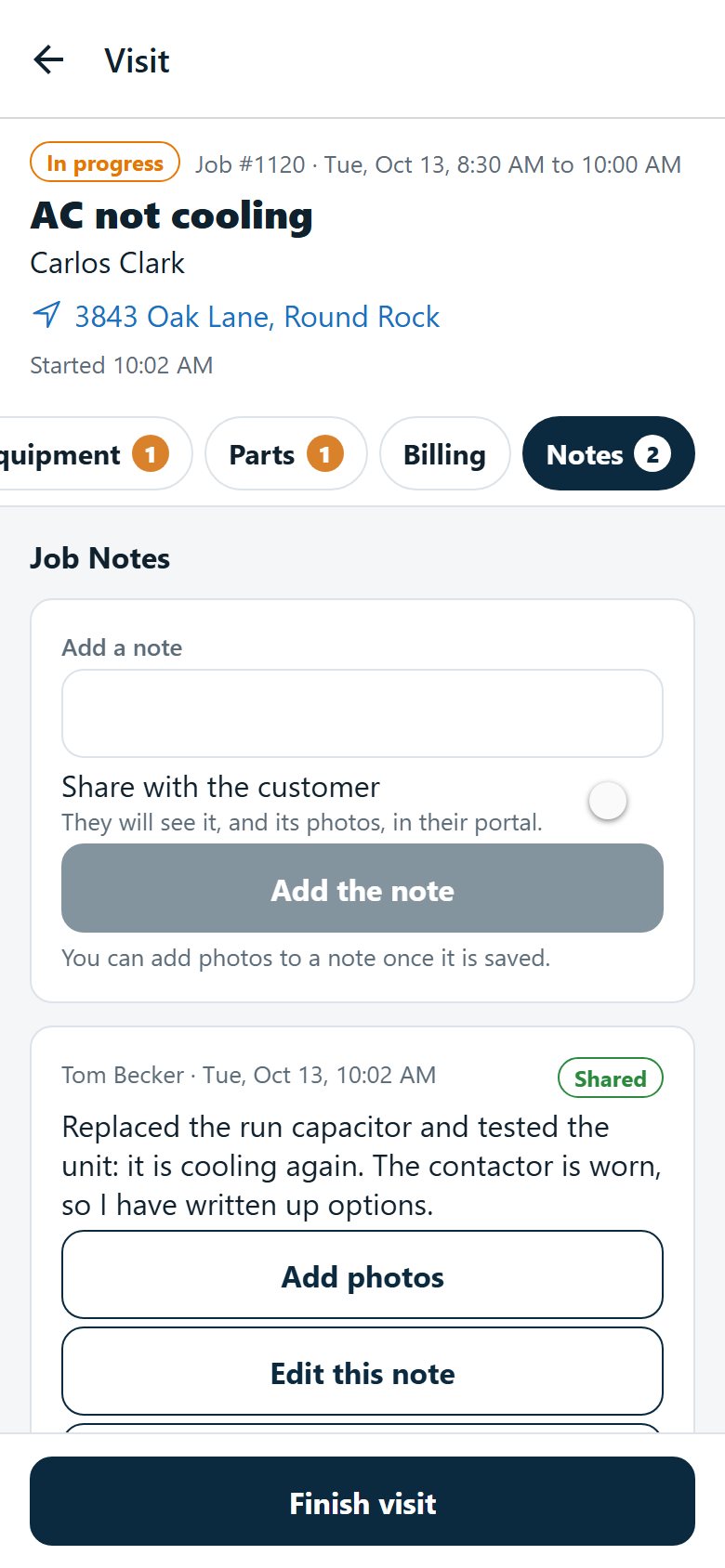
Gate codes, what was found, what to bring next time. A note can have photos taken with the camera or chosen from the photo library, and the person who wrote it can change it later.
- Private to your company by default
- Switch on Share with the customer and the note and its photos appear in their portal
- The office sees every note on the job in the web app
Quote Good, Better and Best on Site
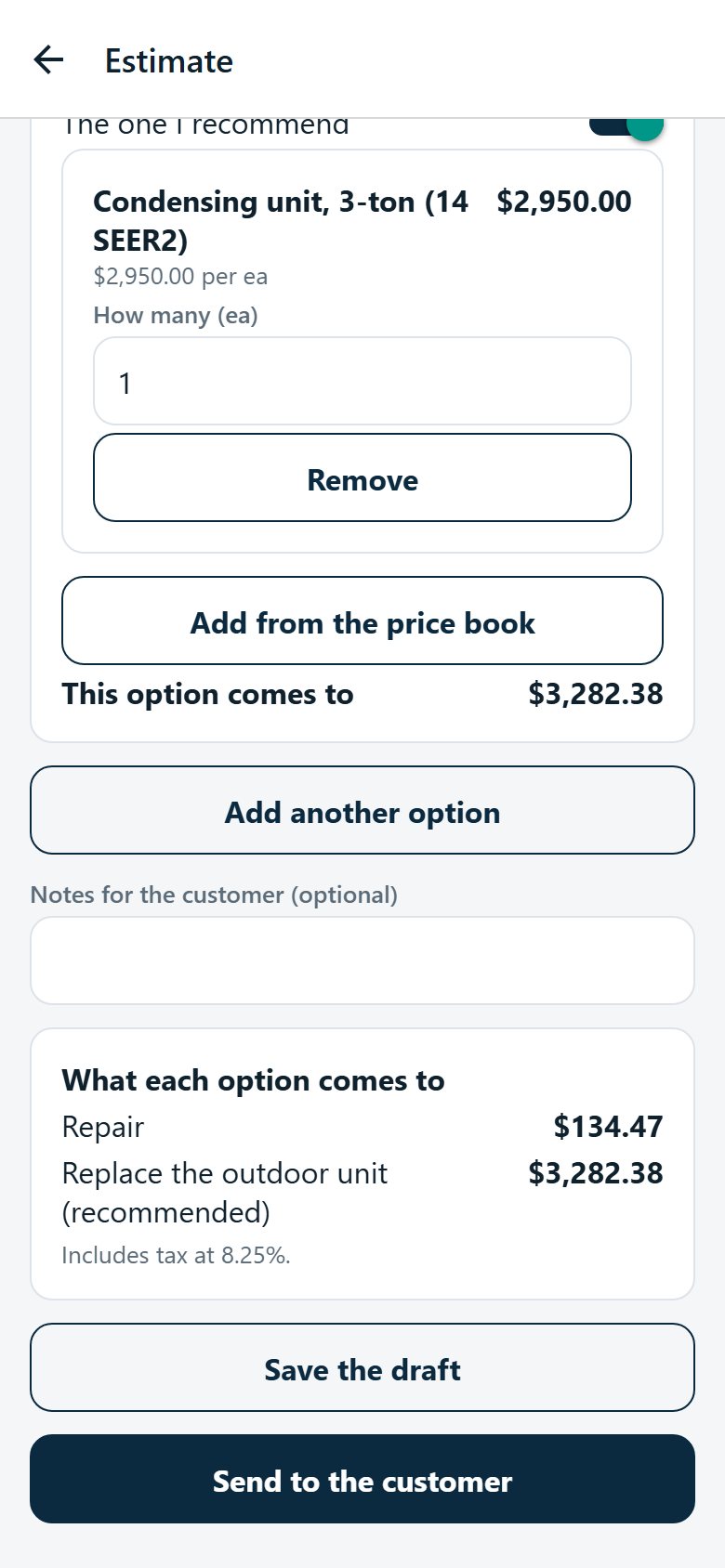
Optionally let technicians write the estimate at the door. They pick items from your price book, offer two to five options, mark the one they recommend, and send it to the customer or get the answer on the spot.
- Prices, names and tax come from your price book: a technician cannot change a price or add a line of their own unless you allow it
- Anything every option includes, such as a diagnostic, is entered once
- You are emailed when a technician sends an estimate
The Customer Approves on the Phone
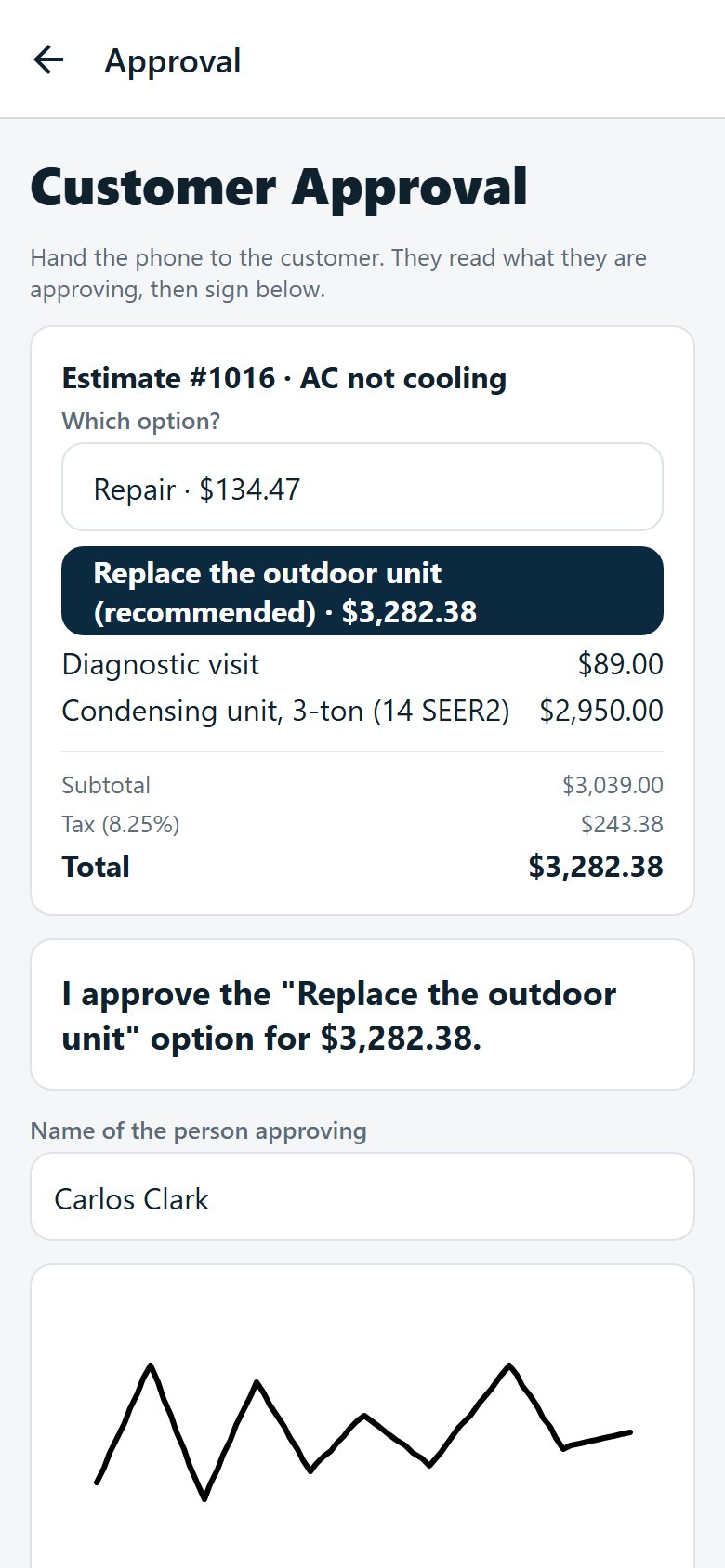
When the customer says yes, the technician hands over the phone. They read the estimate, choose an option if there are options, see exactly what they are agreeing to, type their name and sign with a finger.
- The words they agreed to, the amount, the signature and who recorded it are kept on the estimate
- Nothing is chosen for them: they pick the option themselves
- The office sees the signature on the estimate’s page and is emailed straight away
Invoice from the Estimate and the Parts Used
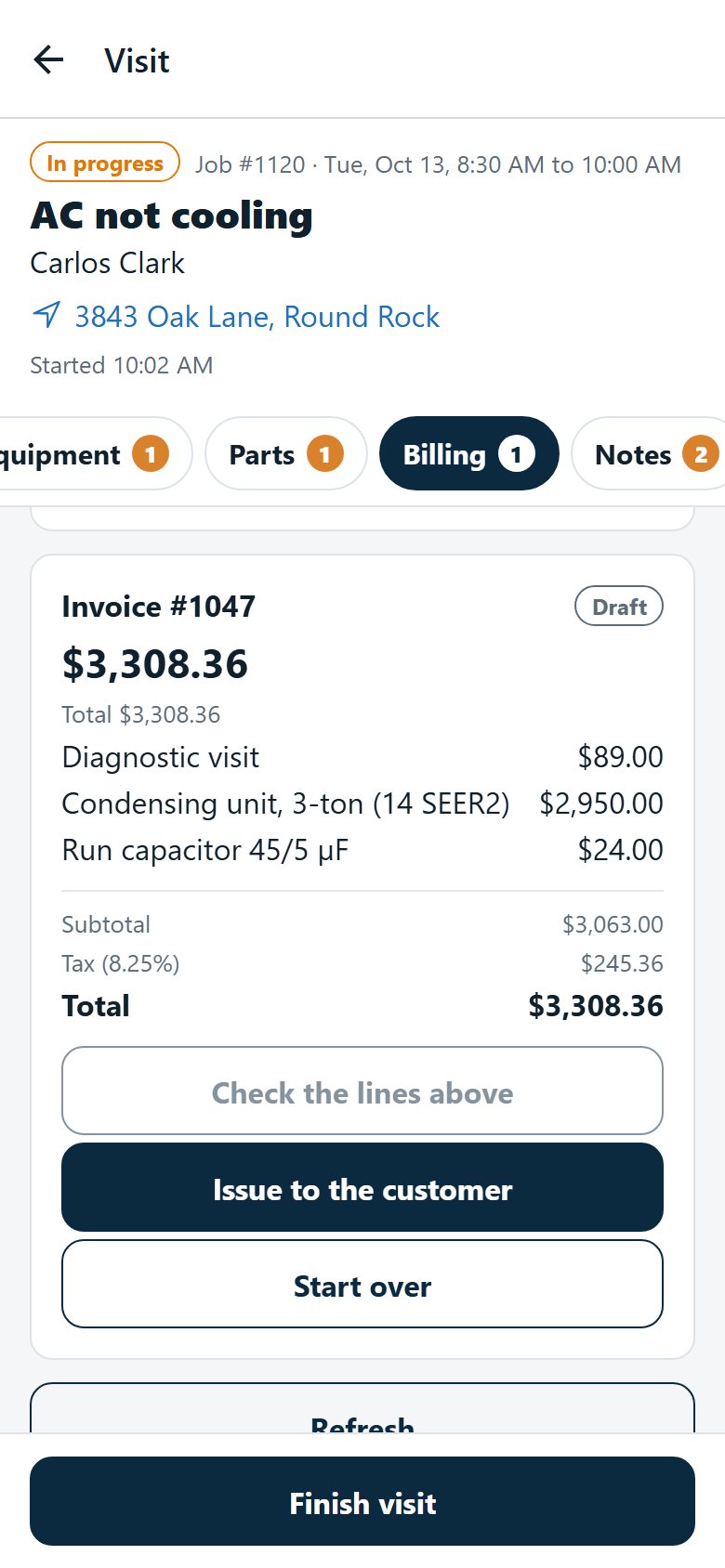
One tap makes the invoice from the approved estimate and the parts used on the job. A part the estimate already prices is not charged twice. The technician checks the lines, then issues it and the customer is emailed.
- No estimate? Invoice the parts used
- Start over if something is wrong, before it is issued
- Once issued, only the office can void it
Record the Payment and Email the Receipt
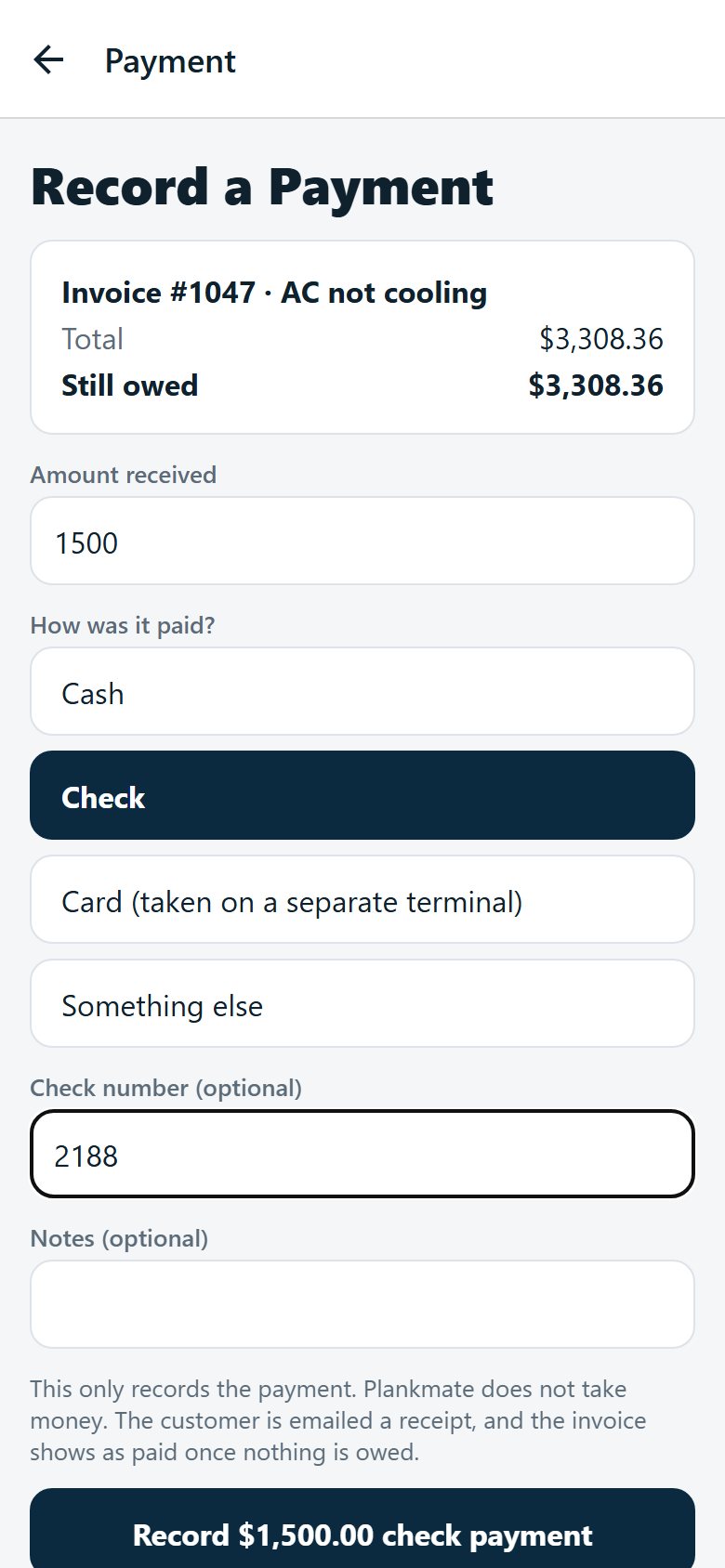
When the customer pays, the technician records it: the amount, cash, check, a card taken on a separate terminal, or something else. The customer is emailed a receipt each time, and the invoice shows as paid when nothing is owed.
- Plankmate only records the payment: it does not take the money
- More than is owed is refused
- Mistakes are corrected by the office, not the technician
On a Construction Site Too
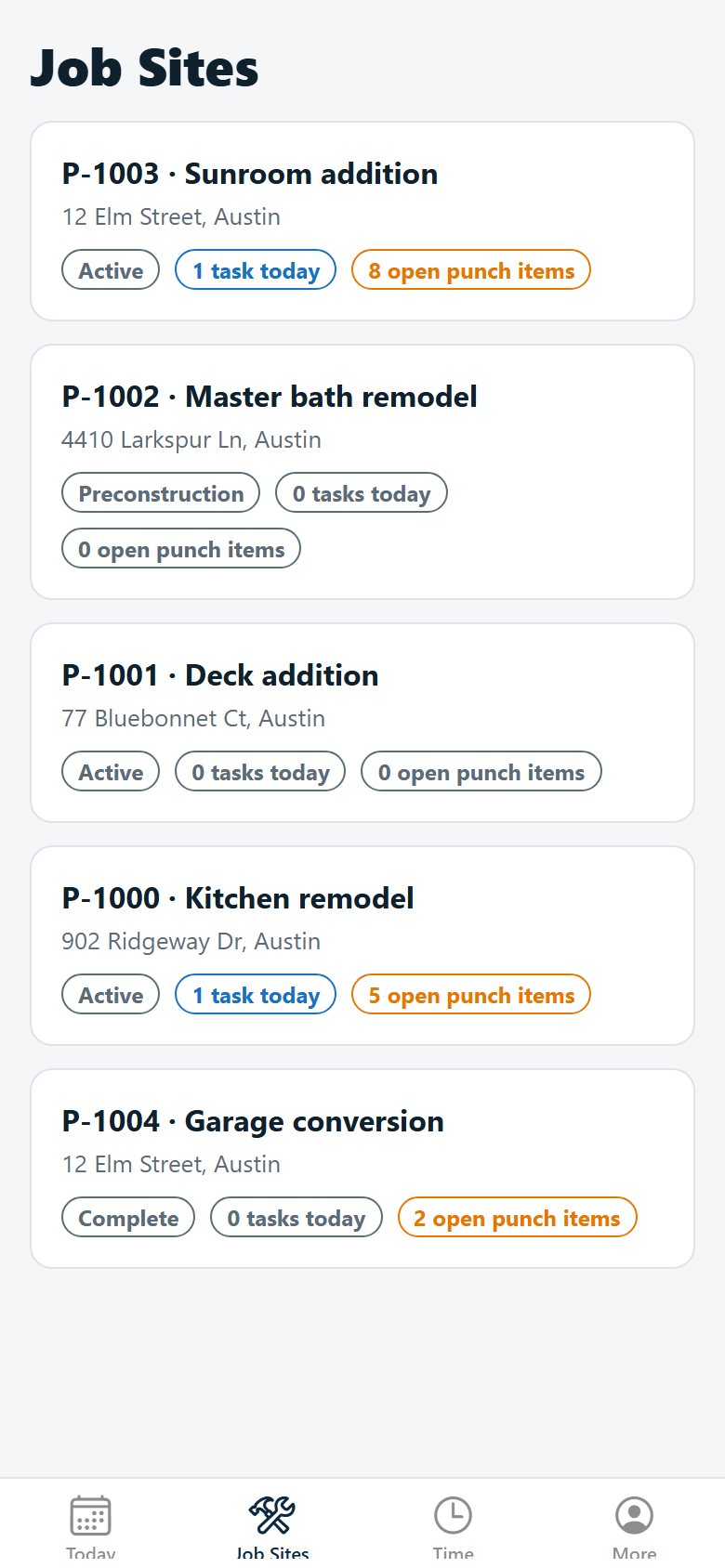
Technicians and site leads on construction work see Job Sites: the day’s tasks, the punch list, daily logs with photos, and plans. Hours go into timecards by project and cost code. They never see budgets or prices.
- Report a punch item with a photo and mark it fixed, for the office to check and close
- Write the daily log with weather, crews and photos
- Optional timecards, approved by the office
You Stay in Control
The app only shows and does what you switch on.
Prices Stay Private
Technicians never see a price until you switch on quoting in the field, and then only on the jobs they are sent to.
Your Price Book, Your Prices
Estimates use your price book. Typing their own lines or changing a price is a setting that is off until you turn it on.
You Are Told
Owners are emailed when a technician sends an estimate or gets one approved on site.
Nothing Is Charged
Payments are only recorded. Card payments are taken on your own terminal, and the office can correct any entry.
Only the Right People
The app turns away anyone who is not a technician, and a technician sees only their own visits and the jobs they are sent to.
One System
Everything done in the app appears at once in the web app, the customer portal and the reports.
Put Plankmate in Your Technicians’ Hands
Tell us how your technicians work and we will show you the app with your kind of jobs.