
Home Services
Dispatch Your Day from One Board
For HVAC, plumbing, electrical, appliance, roofing and other service companies. See every technician and every job, schedule by dragging, and keep customers informed without picking up the phone.
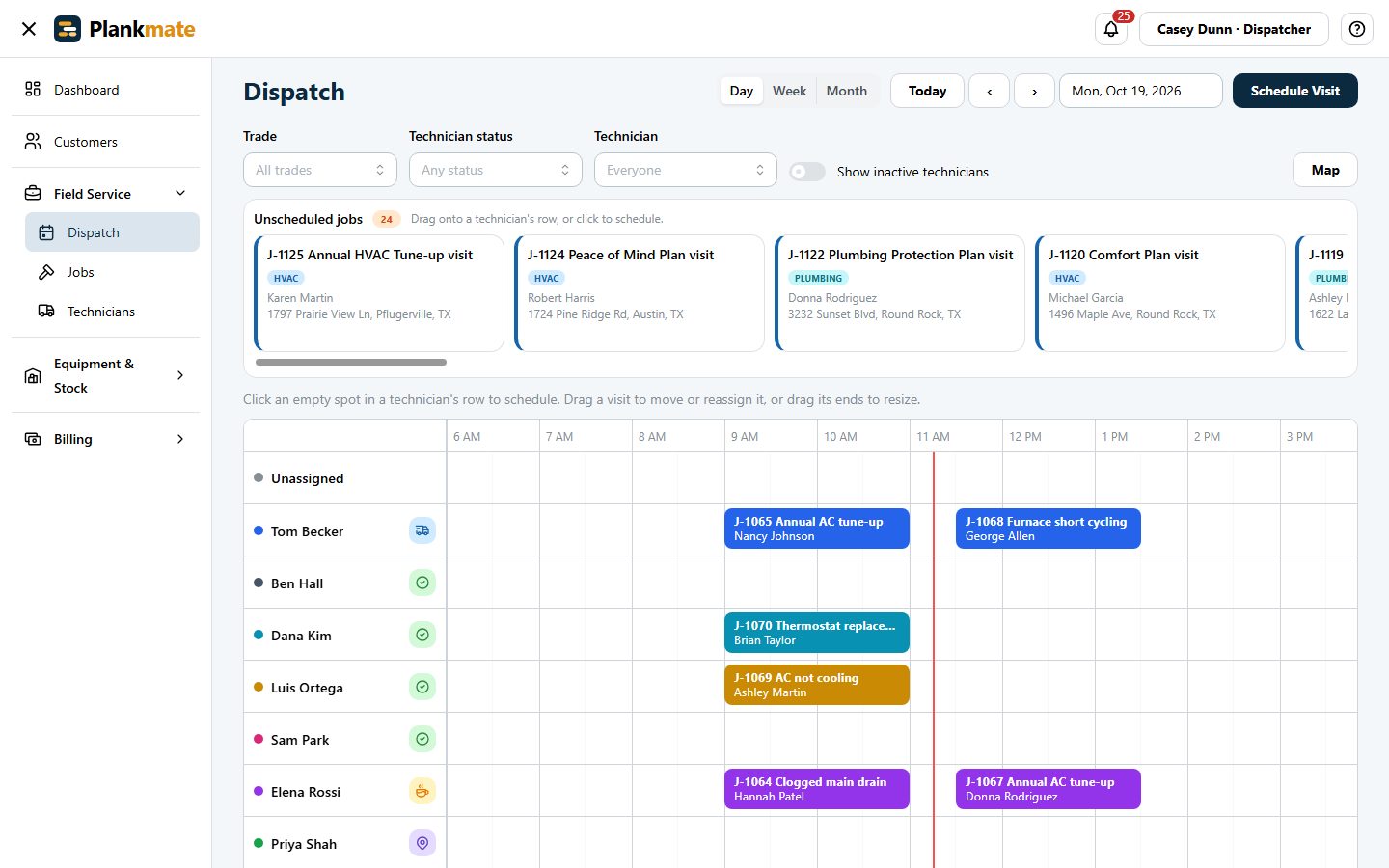
A Dispatch Board That Thinks Like a Dispatcher
Unscheduled jobs wait at the top, technicians run down the side, and the day runs across. Click an empty spot to schedule, drag to move or reassign, and drag the ends to resize.
- Warns before double-booking a technician, and respects work schedules and time off
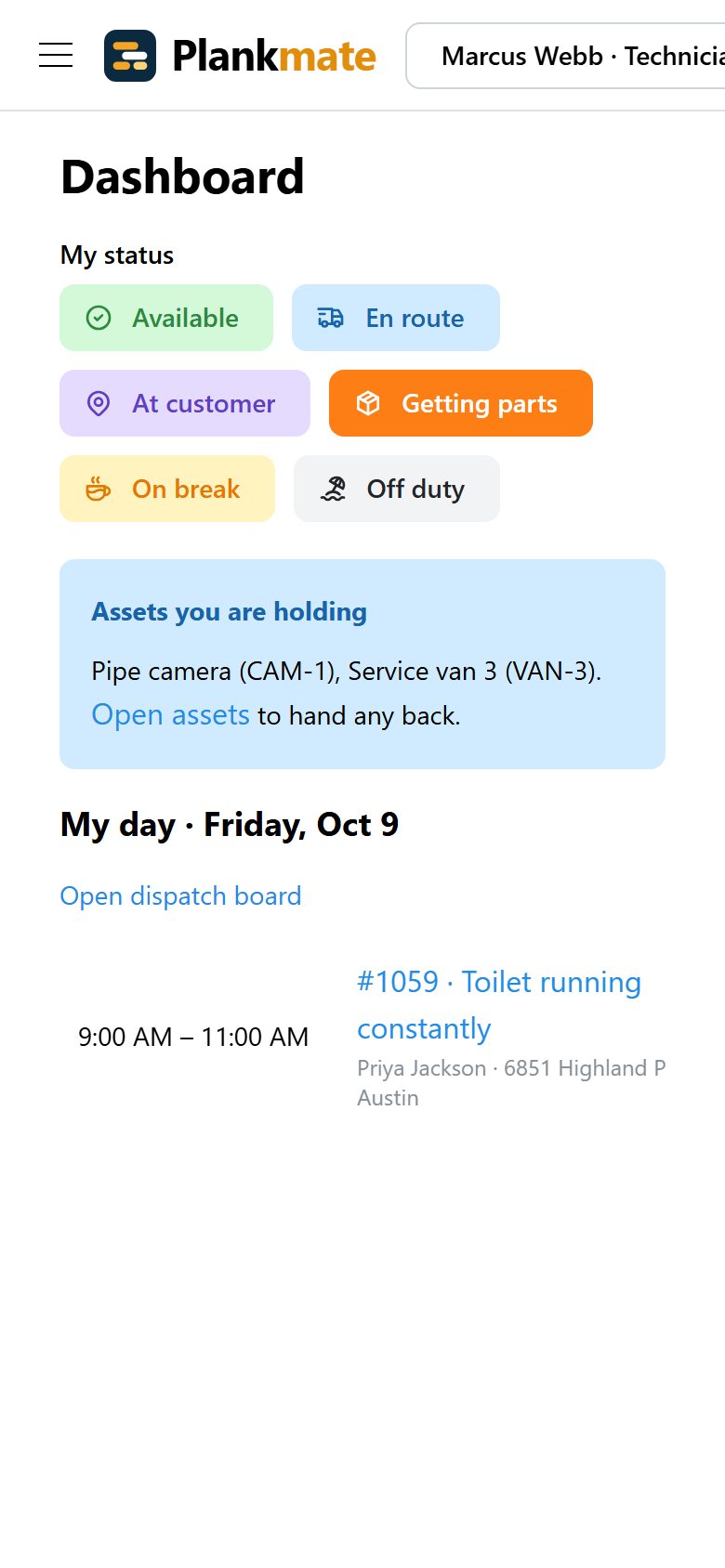
- Technician status: available, en route, at the customer, getting parts, on break
- See the day on a calendar or a map, and send directions to their phones
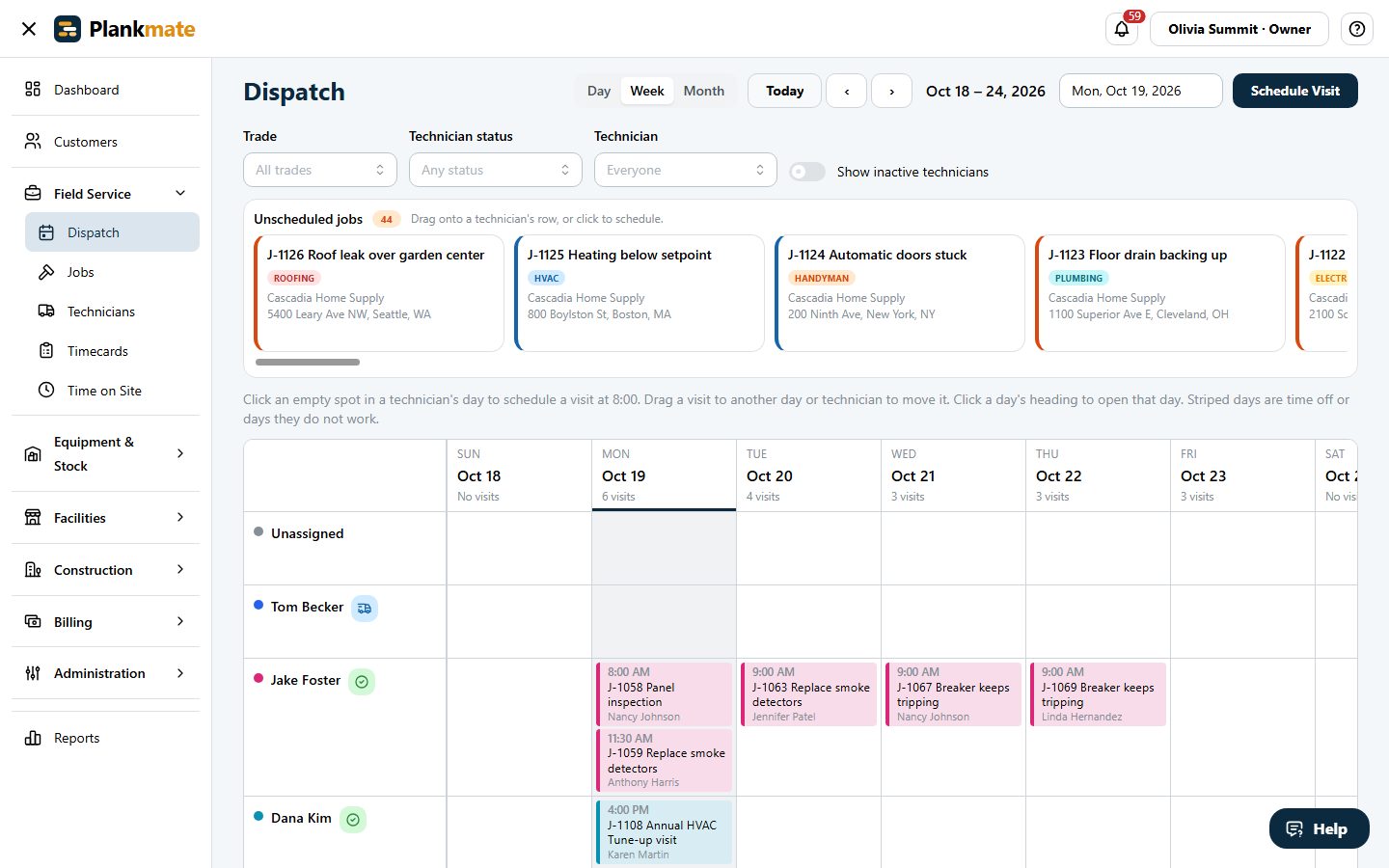
- Switch between the day, the week and the month, and narrow it to one technician
- Filter by trade; emergencies stand out
- A bell and a dashboard card list what needs you: jobs to schedule, overdue invoices, plans ending
Every Customer, Property and Job Kept Together
Each customer has their properties, equipment, jobs, estimates, invoices and visits on one page. Find anything from a name, an address or a job number.
- Homeowners and businesses, each marked residential or commercial
- Import a customer’s properties from a spreadsheet, or bring your customers across from a Housecall Pro export
- Contact preferences on each customer, including opting out of texts
- Builders and property groups: a customer for each subdivision under the parent, each with its own contacts, terms, sites and invoices, and a statement for the whole family
- Addresses are put on a map for pins and Navigate buttons
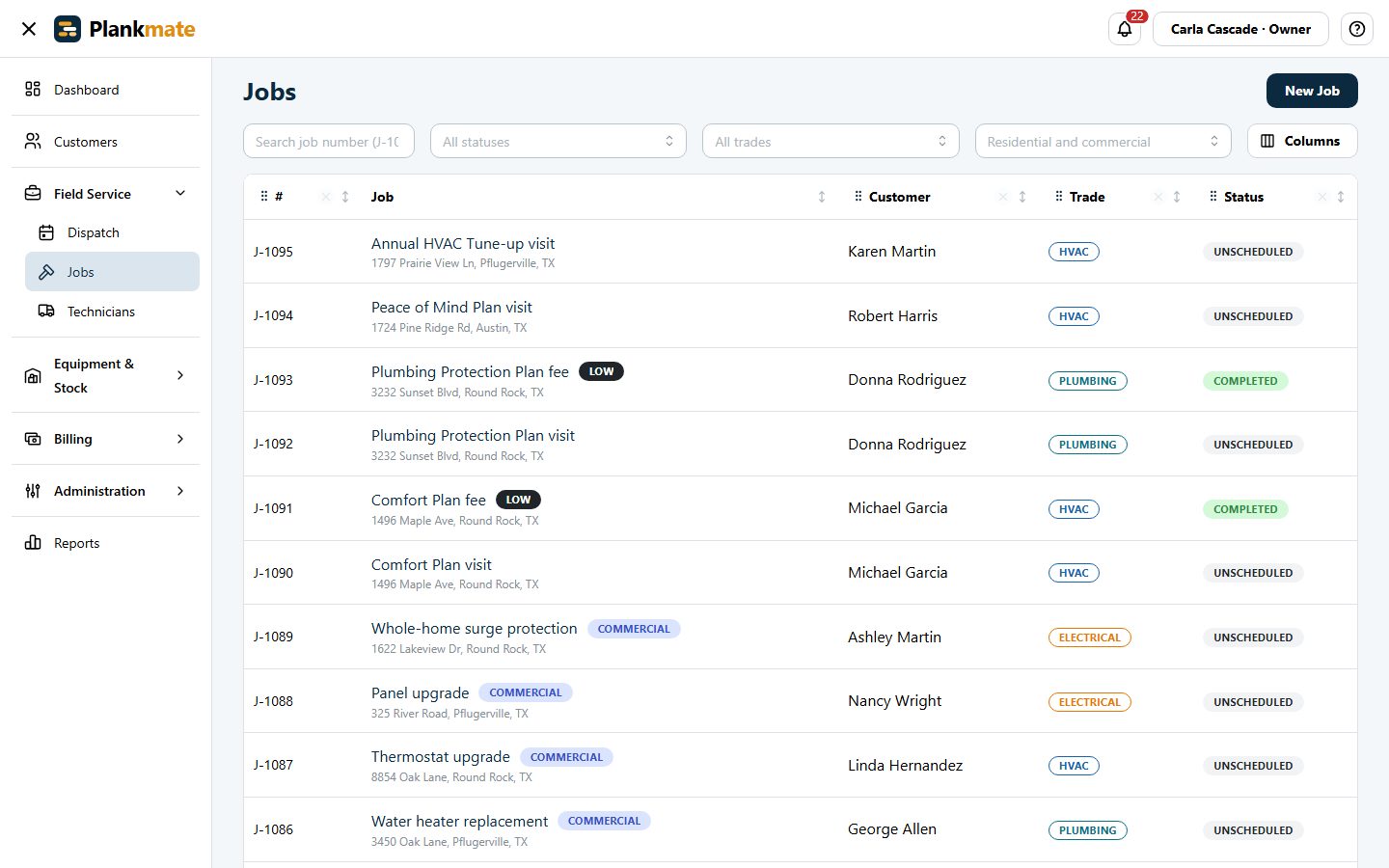
- Every main list lets you choose the columns, drag them into order, resize them and sort by a heading
- Jobs from request to paid invoice, with notes and photos
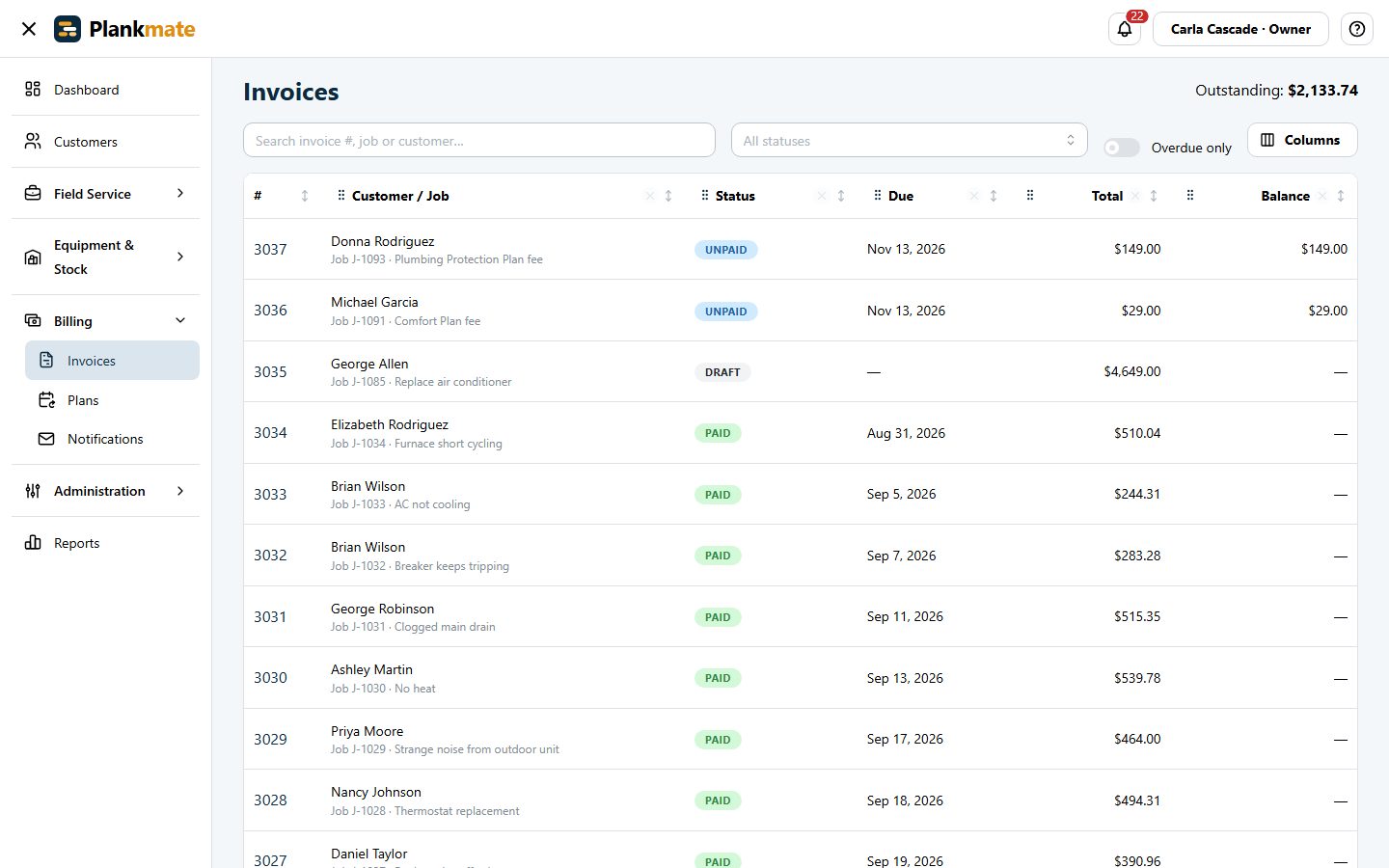
Quote with Options, Invoice, Get Paid
Give customers good, better and best, with tax and a printable copy. Customers approve online. Then invoice, record payments, and let Plankmate chase what is overdue. Paying by card from the customer portal is coming soon.
- Estimates with options; approval from the customer portal
- Import your parts and services from a spreadsheet, with optional opening stock, and keep them up to date by importing again
- Invoices with partial payments and printable copies
- Coming soon: customers pay an invoice by card from their portal, through Stripe, with the money going to your bank account
- Payment terms per customer, reminders before and after the due date, and a daily summary of what is overdue to you
- Optional review requests: a few hours after a job, homeowners are emailed a link to your Google, Yelp or Facebook reviews page
- A QuickBooks Online connection for the books
Parts and Stock, Truck by Truck
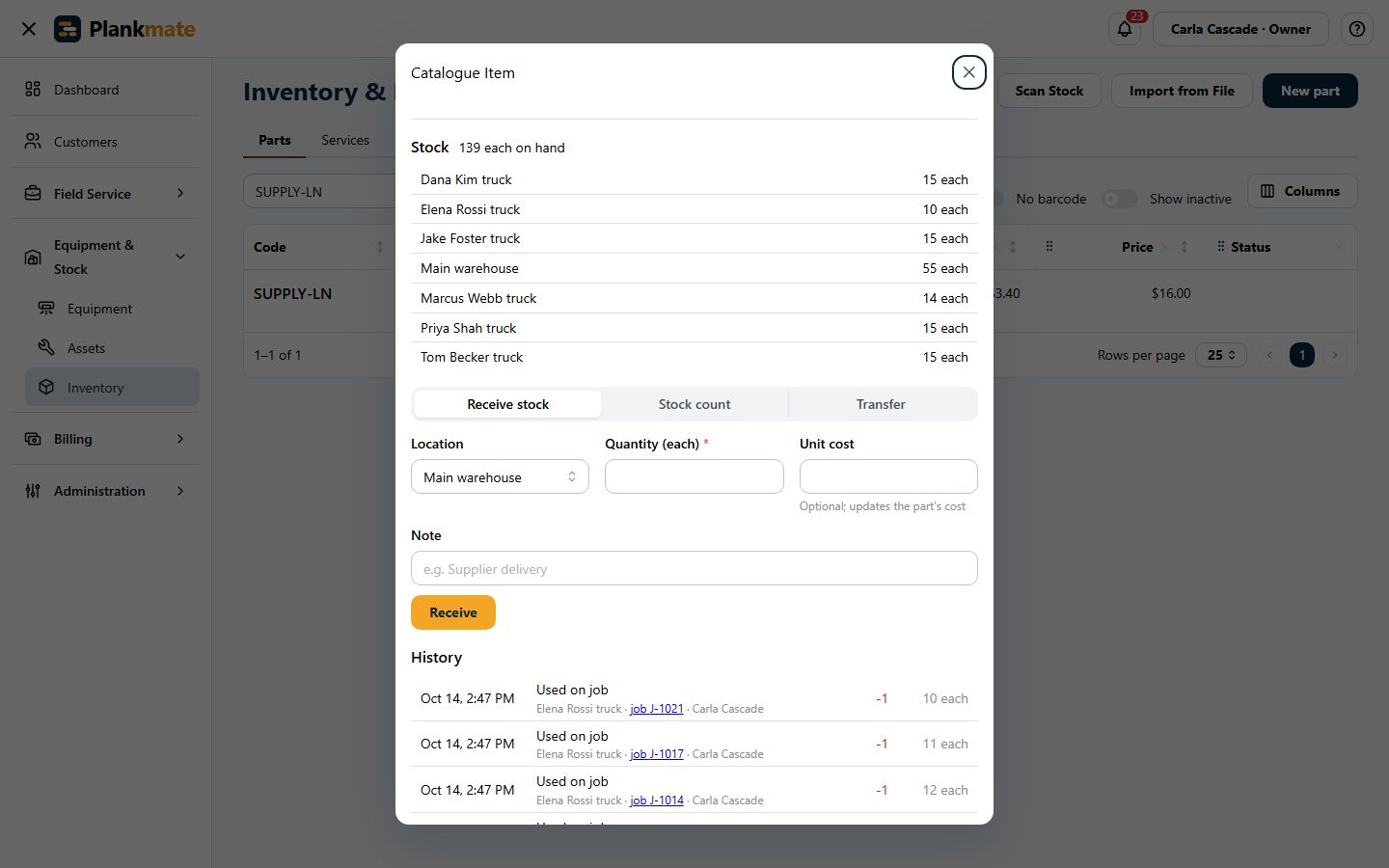
Keep a catalogue of the parts you use and the services you sell, and know what is in the warehouse and on every truck. The stock goes down when a technician uses a part on a job, and the part is on the invoice.
- One price book for parts and services, with cost, price, unit and tax
- Stock by location: the warehouse and each technician’s own truck
- Receive a delivery, move stock from the warehouse to a truck, or count a shelf, and every change is kept in the part’s history
- Set a reorder level and you are told when a part runs low, on the dashboard and in a list
- A technician takes parts only from their own truck, and sees no costs or prices
- Bring your catalogue in from a spreadsheet, with opening stock
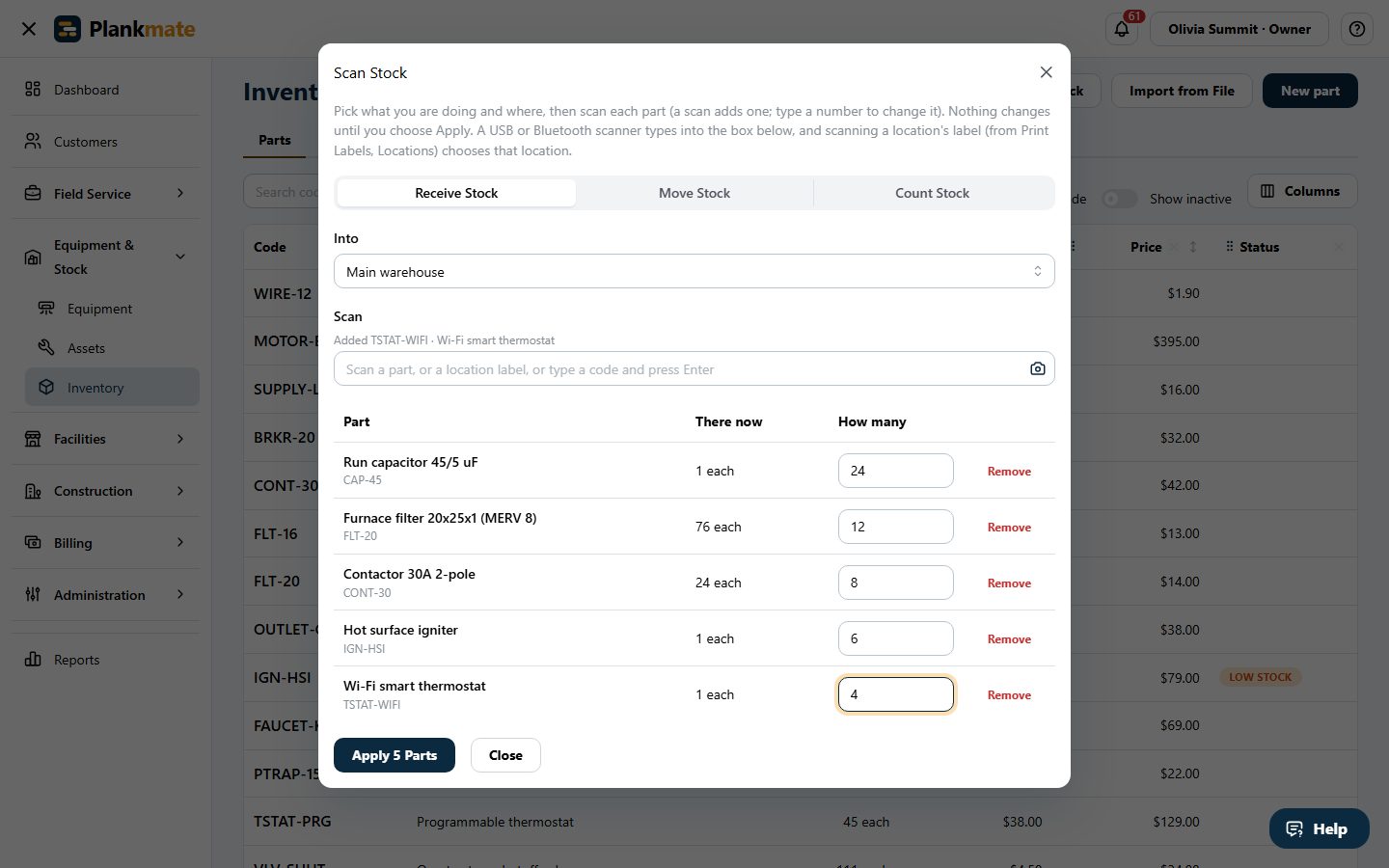
Scan It: Receive, Move and Count Stock with a Barcode
Give your parts barcodes and put a scanner to work. Receive a delivery, send stock from the warehouse to a truck, count a shelf, or add a part to a job: scan, check the numbers, and confirm. Nothing changes until you do.
- A part can have any number of barcodes: the supplier’s UPC, the maker’s code, or one Plankmate makes for you
- Counting only changes the parts you scanned, and a mistyped UPC is flagged before it is saved
- Works with a USB or Bluetooth scanner, or the camera in a laptop, tablet or phone
- Scan in the price book and on a job to choose a part
- A report lists every stock change made by scanning, and who made it
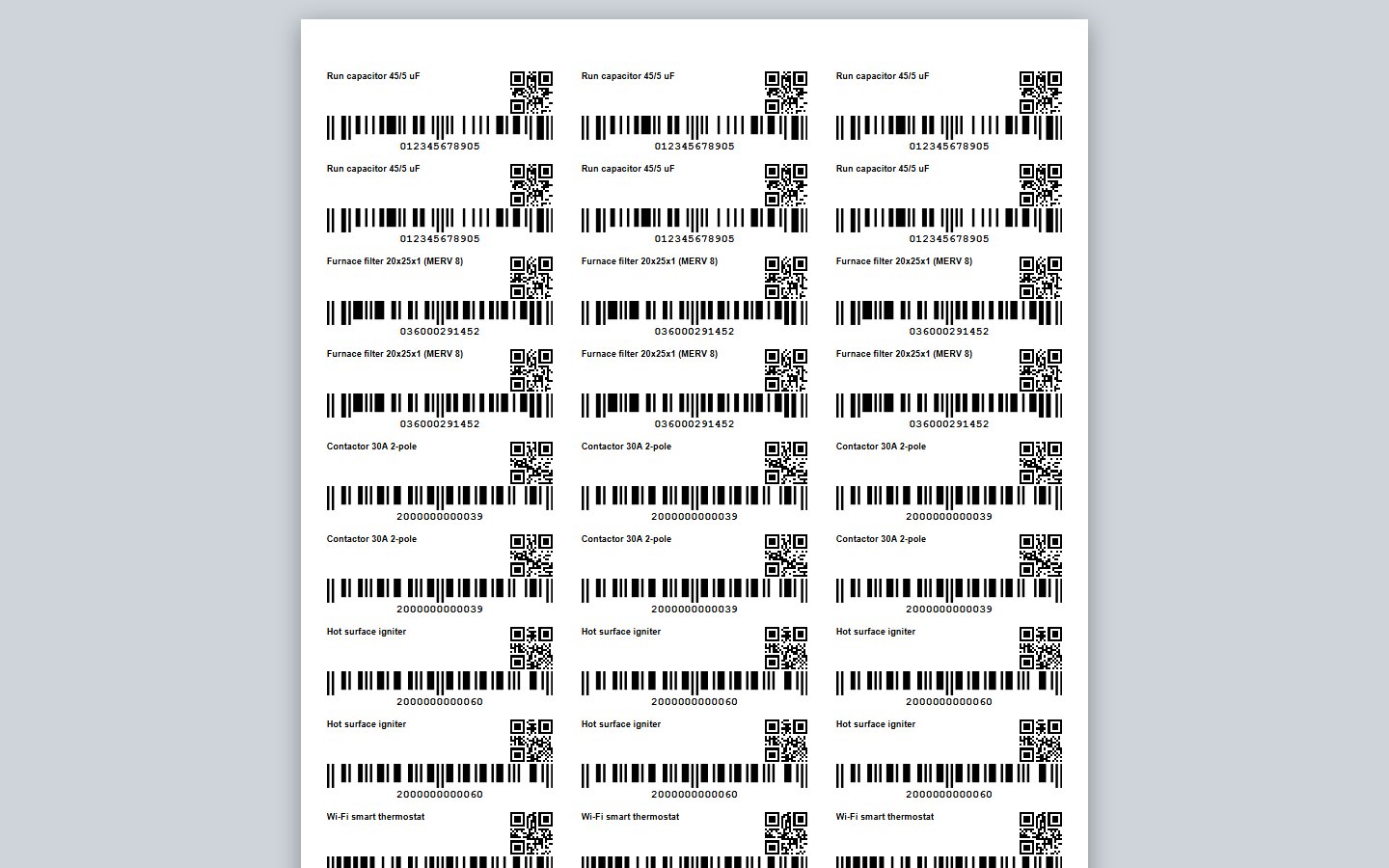
Print Your Own Labels
Print labels for the parts you pick, everything in a list, what is low on stock, or every shelf, bin and truck. Use a label printer, or an ordinary sheet of address labels.
- Single labels for a label printer, or sheets of 30 or 10, with a starting place so a part-used sheet is finished first
- A part’s own UPC or EAN prints as that barcode; anything else prints as Code 128, with a QR code beside it
- Scan a shelf, bin or truck label to choose that location when you receive, move or count
- Parts with no supplier barcode can be given an internal one with a click
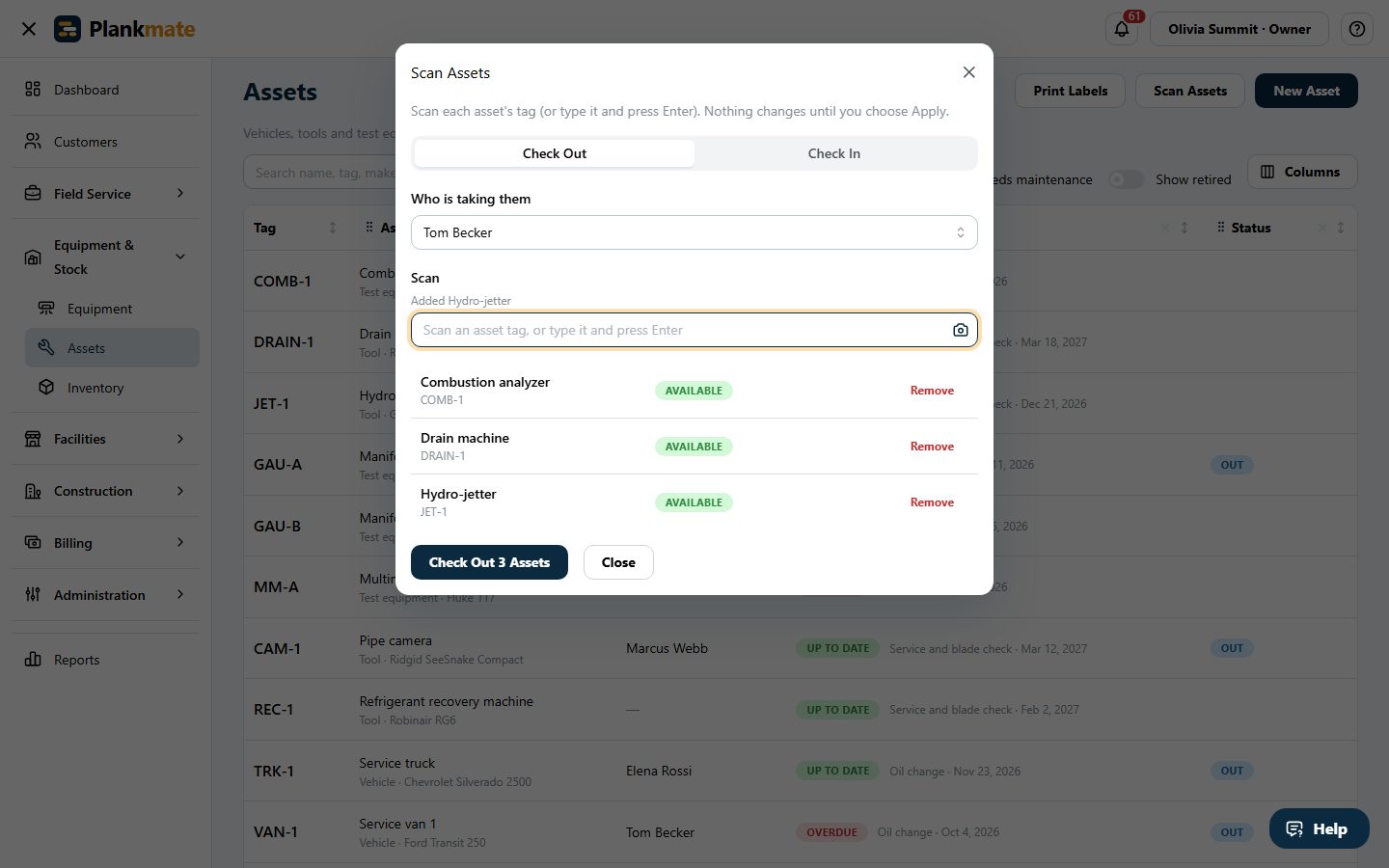
Tools, Vans and Customer Equipment, by Scan
The tag on a tool, vehicle or test instrument is its barcode. Hand a batch to a technician or take them back by scanning, and see who has what.
- Technicians check a tool out to themselves, or hand it back, by scanning it on their phone
- Put a label on a customer’s furnace or water heater: scan it, or the serial number on its data plate, to open the unit and add it to the visit
- Print labels for all your assets and equipment from their lists
A Phone Screen for the Technician
Technicians see their own day and the jobs they need. They set their status with a tap, start and finish visits. Prices stay hidden unless you switch on quoting in the field.
- Customers are told they are on the way
- Optional: a signature from the person at the site when work is finished, and a reason when a visit ends unfinished
- Optional: checklists to tick off, required before a job can be completed, and put on a maintenance plan’s visits automatically
- Optional: share location while working, and record real arrival and departure times
- Optional: quote on site, get the customer’s signature, invoice and record payments, in the technician app
Customers Help Themselves
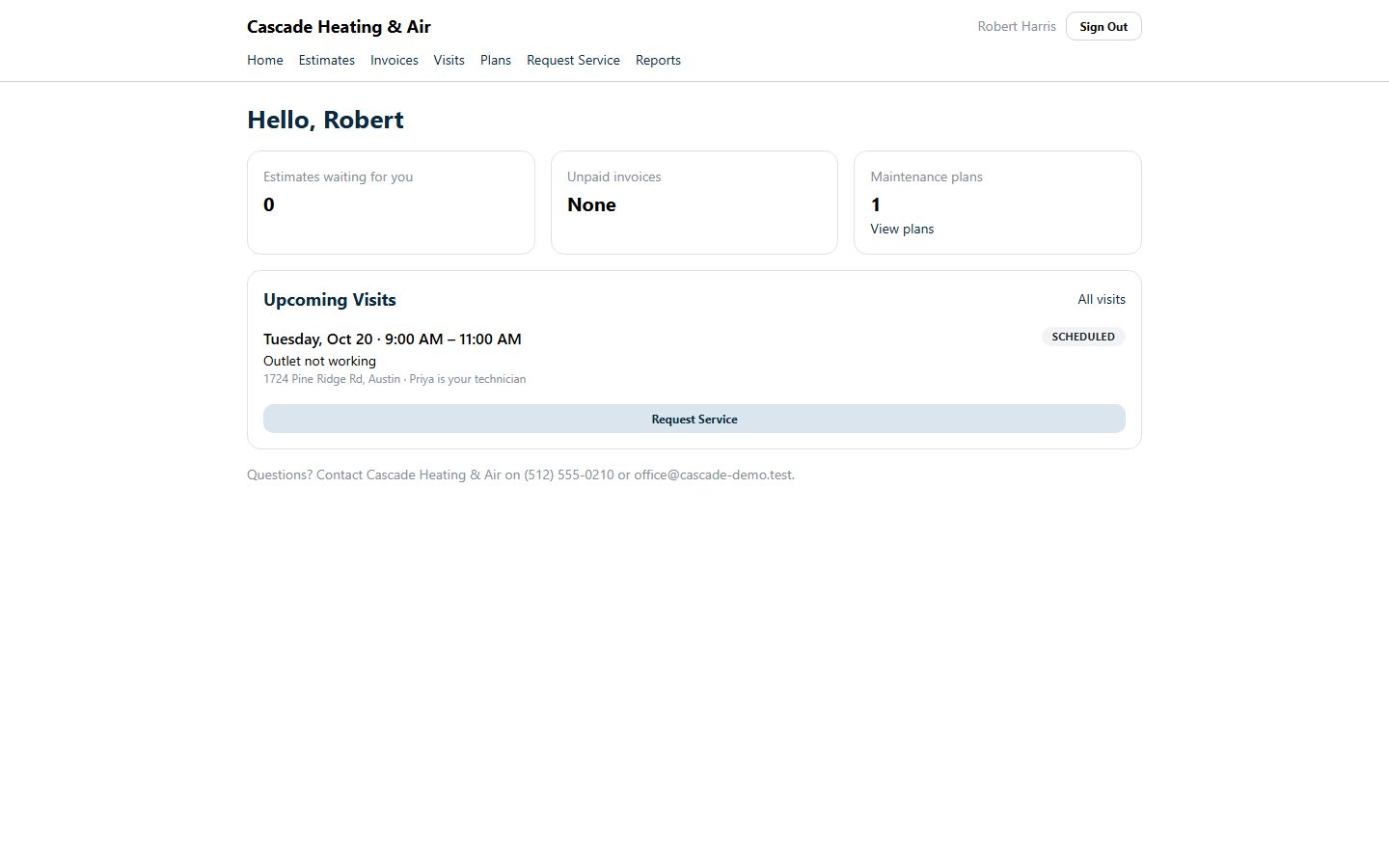
Customers sign in by email to see estimates, invoices and visits, approve an estimate and ask for service. You can also text residential customers who agree to it, from your own Twilio number, when a visit is booked and when the technician is on the way.
- A booking page of your own to put on your website: customers ask for a day and time without signing in, and it arrives as an unscheduled job
- Maintenance plans create the visits and invoice the fee on a schedule, and the ones about to end are flagged for renewal
- Parts and stock on every truck, equipment at customer sites with warranty dates, and your own vehicles and tools with their maintenance due
Reports for the Person Reading Them
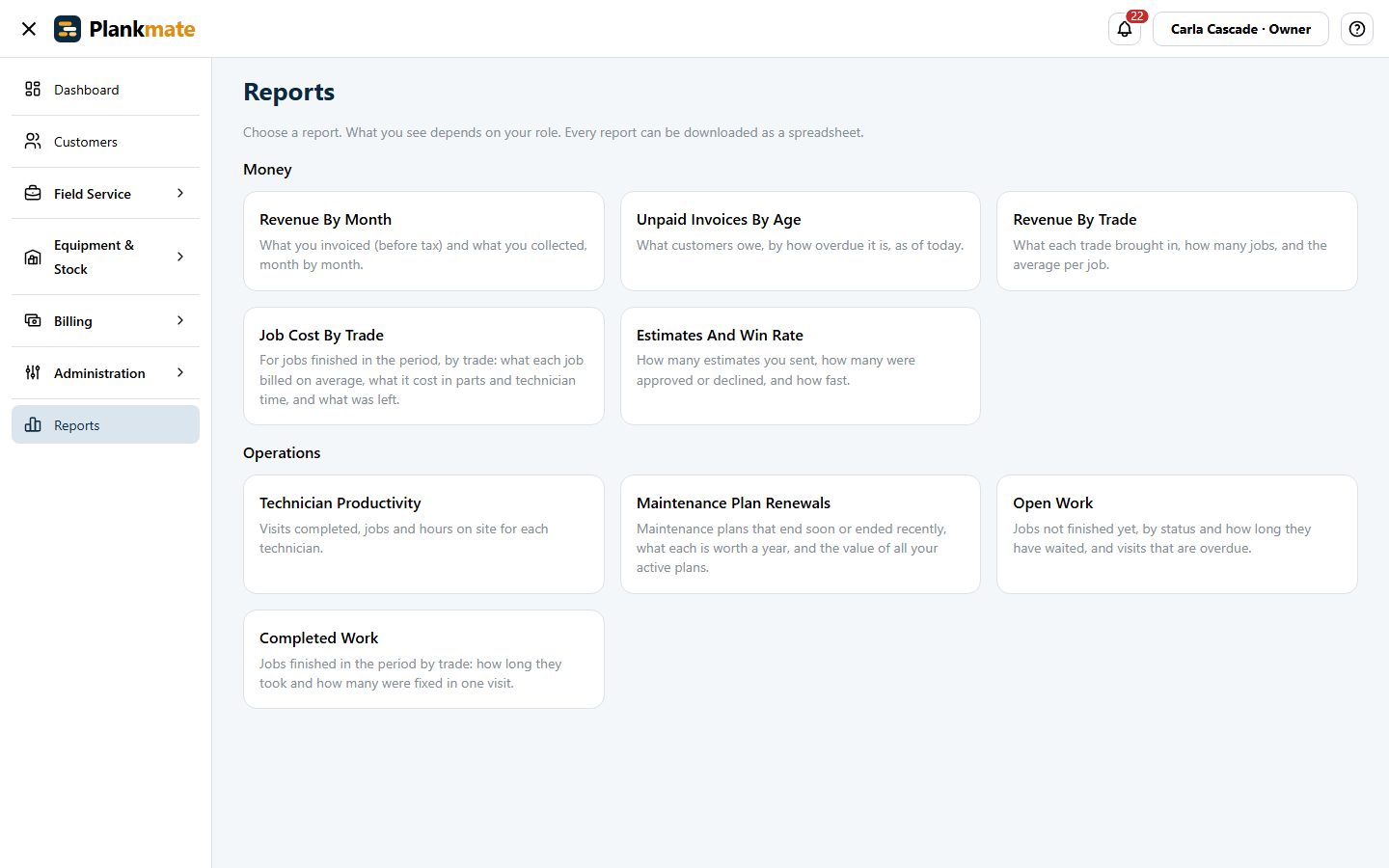
Switch on Reports and each person gets the ones that suit their job. Owners see the money and how the business is doing, dispatchers see the work and the technicians, and a technician sees only their own visits and hours, never a price.
- Owners: revenue by month, unpaid invoices by how overdue they are, revenue by trade, what each trade’s finished jobs billed and cost, and the estimate win rate
- Dispatchers: open work and how long it has waited, completed work, how many jobs were fixed in one visit, and technician productivity
- Pick a period, then download any report as a spreadsheet
- Customers can see their own service history, and nobody sees a report that is not meant for them
Run Your Shop from One Place
Tell us about your company and we will show you the dispatch board with your trades.