
Builders & Remodelers
From Estimate to Final Draw
For general contractors, builders and remodelers. Price the job, win it, run it against a budget by cost code, manage your subcontractors, and bill the client, with a portal that keeps them in the loop.
Know Where Every Project Stands
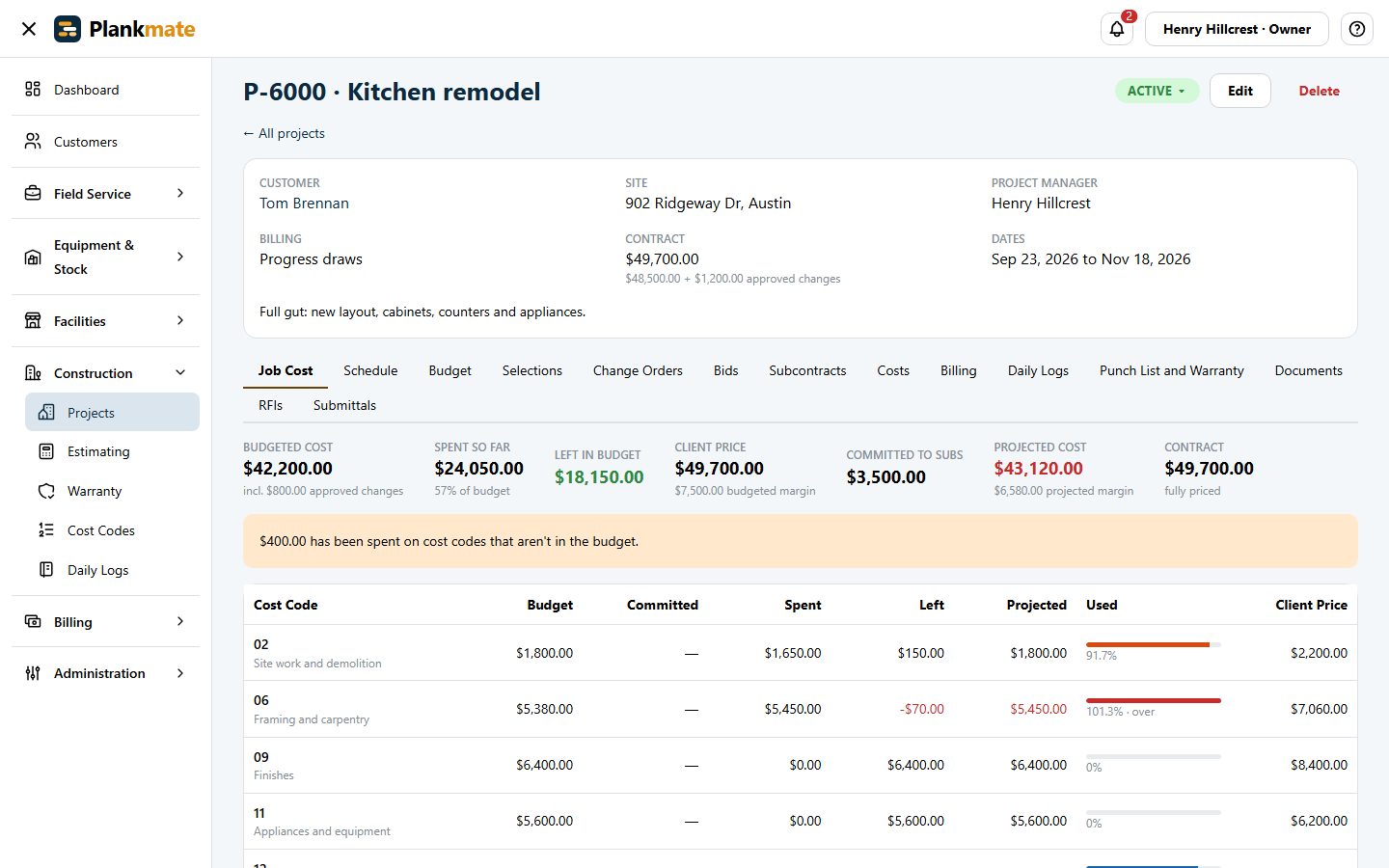
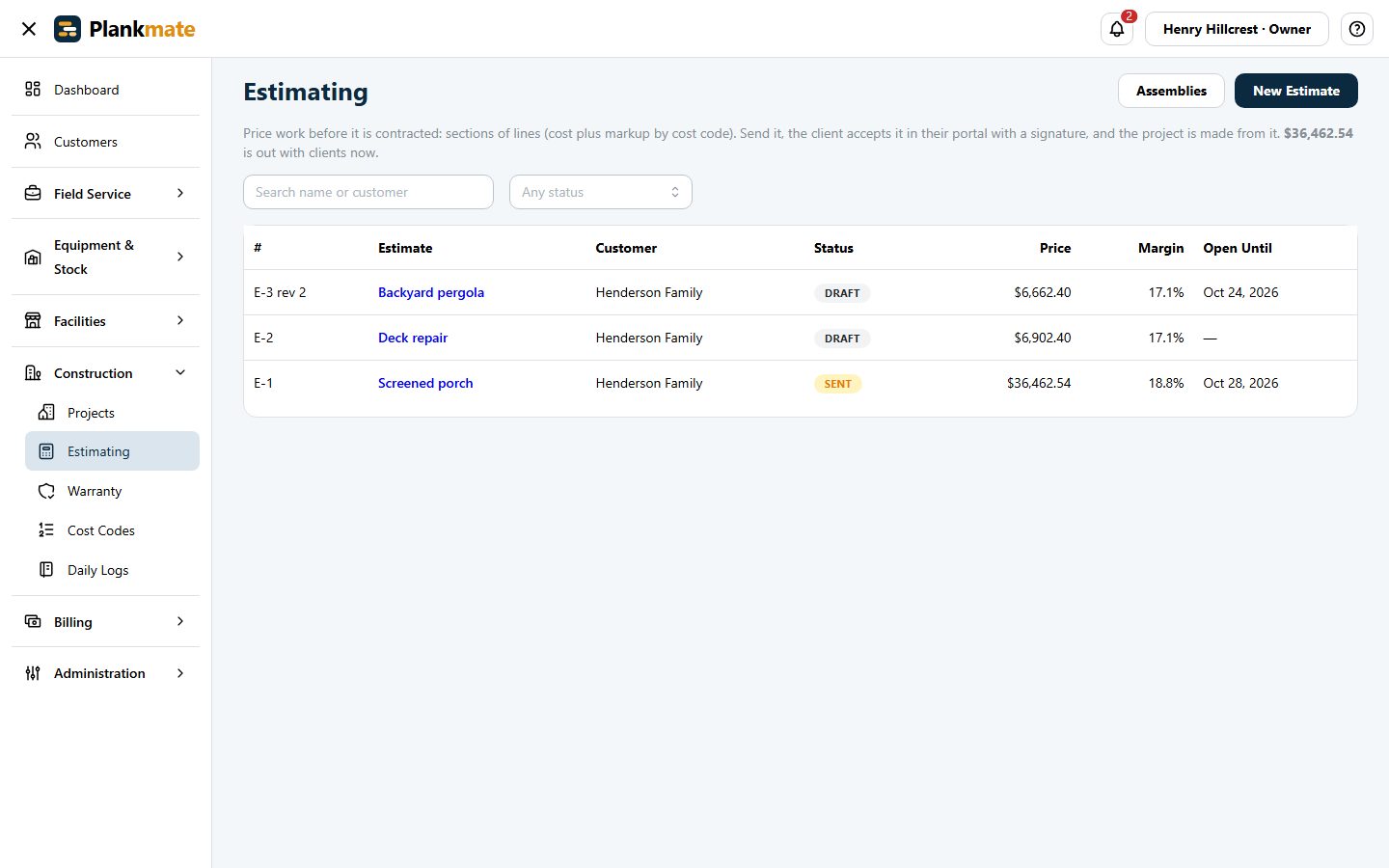
Each project has a budget by cost code and what has been spent against it. See what is committed to subcontractors and where each code is heading before it goes over.
- Budget, committed, spent, left and projected cost by code
- A flag when money is spent on a code that is not in the budget
- Cost-plus or progress billing, with retainage
Estimate Carefully, Win the Job
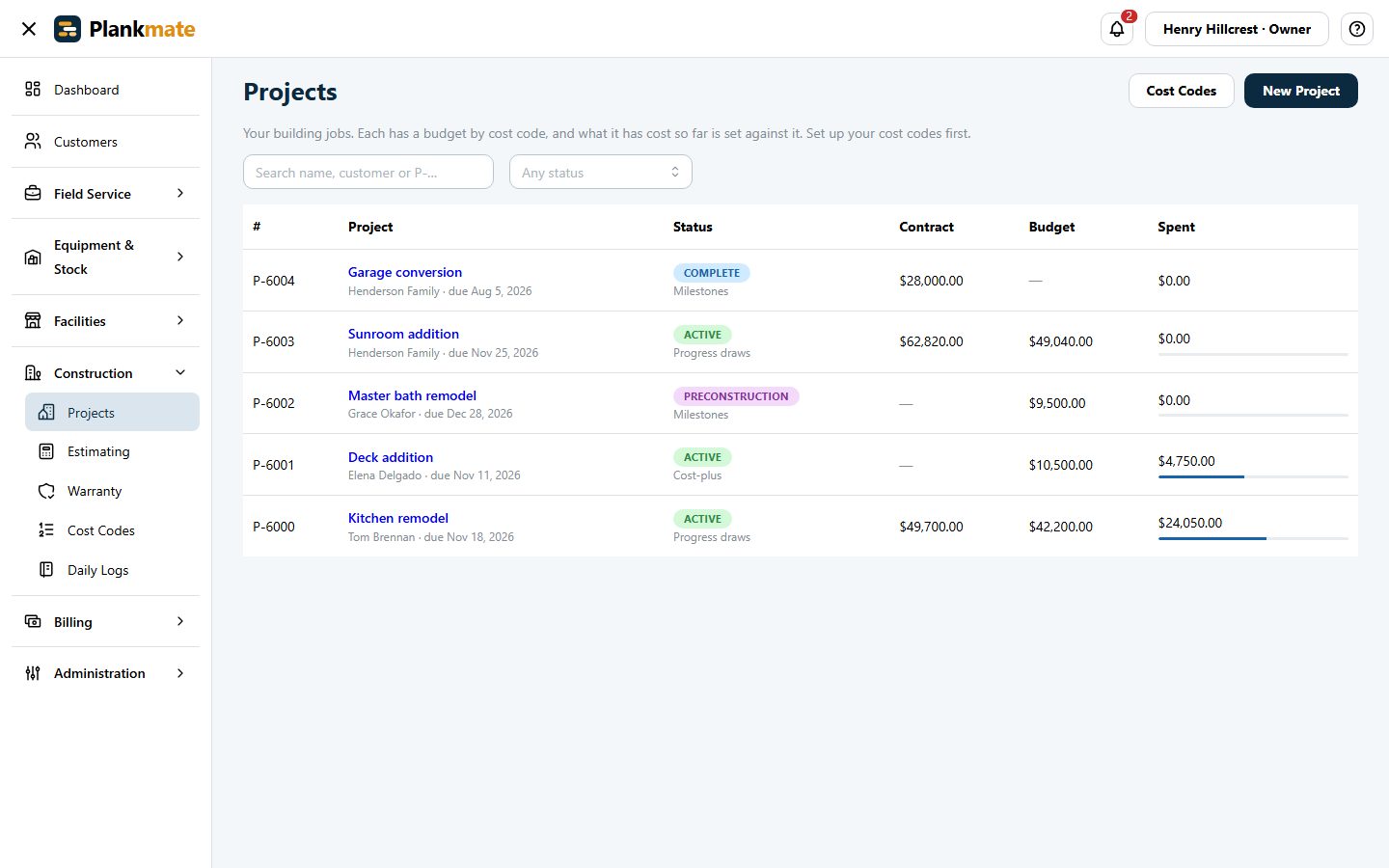
Price work in sections with cost, markup and allowances, reuse assemblies, add tax, and send it to the client. They accept it in their portal with an electronic signature, and accepting creates the project with the price as the contract and the cost as the budget.
- Options and revised proposals when the client changes their mind
- Cost codes you set up once
Subcontractors and Bids, Without the Spreadsheet
Make a package of items to price, invite vendors, and compare the bids side by side. Awarding one makes a draft subcontract. Payments can be held until a signed lien waiver is on file.
- Bid due dates with reminders, and attachments from the bidders
- Subcontract price by cost code, retainage, bills and payments
- Vendors’ insurance and licences tracked
A Schedule Your Trades Confirm
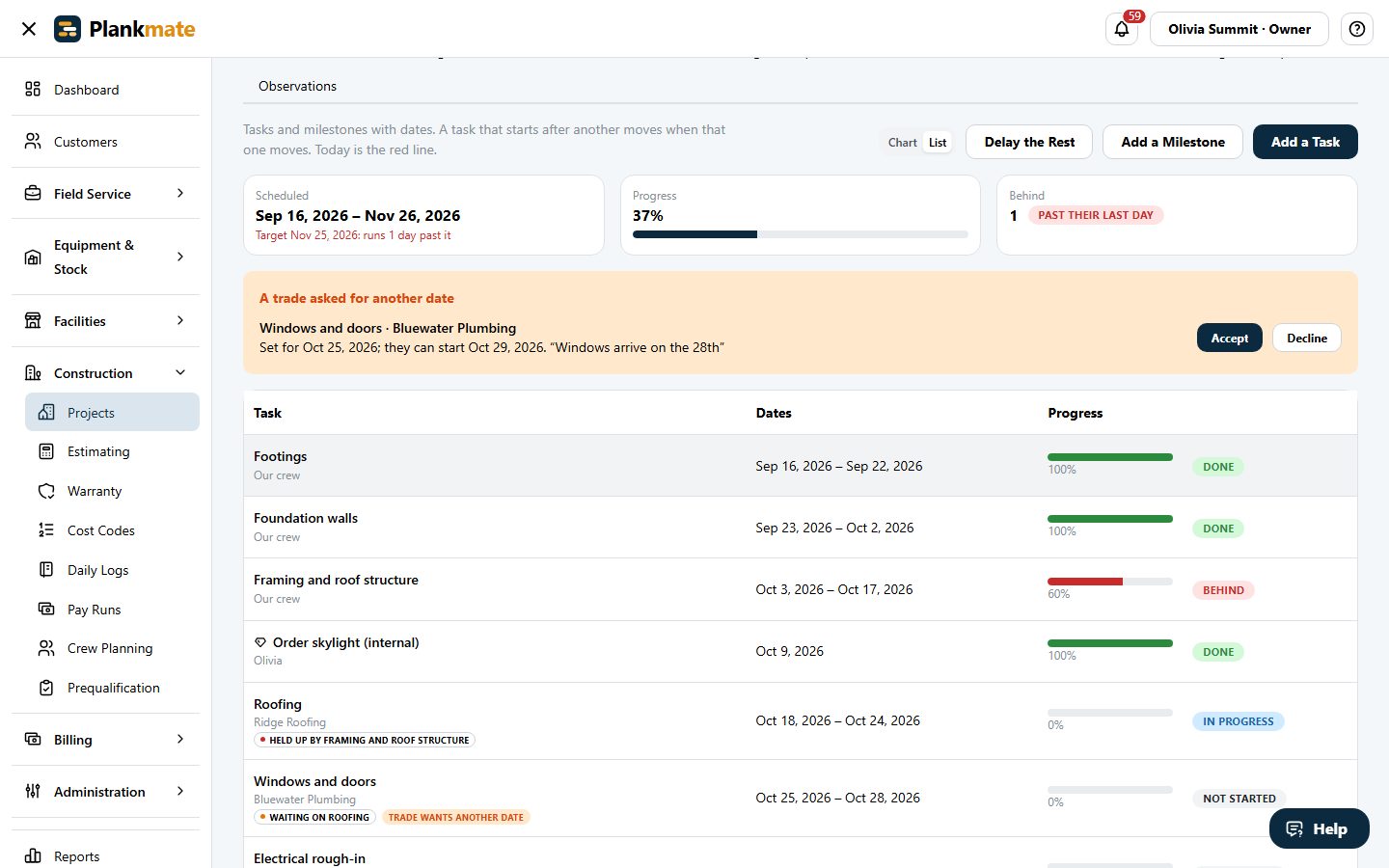
Give a task to a subcontractor and they are emailed its dates and asked to confirm them, or to ask for another start. Move the schedule and each trade gets one email listing what changed. Every task shows whether it can start, is waiting, or is held up by something late.
- Accept a trade’s request for another date, or decline it, with a note; the tasks that wait for it move too
- The client is emailed once when a milestone is reached, with a switch to turn that off
- Start a new project from an earlier one: its schedule, budget and billing schedule, ready to adjust
Selections the Client Makes, Against an Allowance
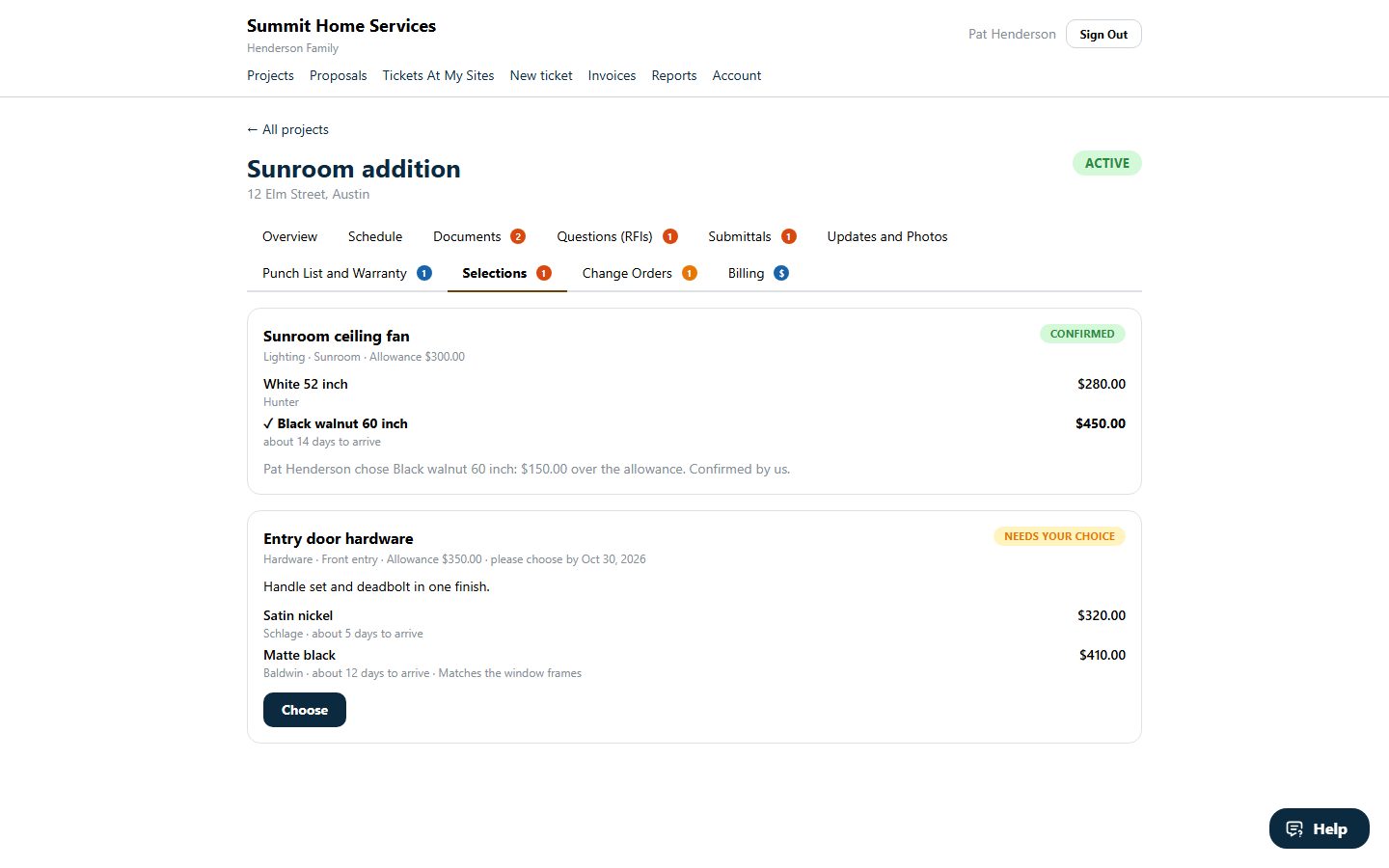
Fixtures, finishes and colours: set up each choice with a few priced options and the allowance in the contract, then send it. The client chooses in their portal, and you see how far over or under the allowance it comes before you order.
- A choose-by date, supplier and lead time on each option
- The client is emailed; only an approver at their company can choose
- You confirm the choice when you order it, or reopen it for them to choose again
- A choice over the allowance is flagged, ready for a change order
Warranty Claims and Cash, Across Every Job
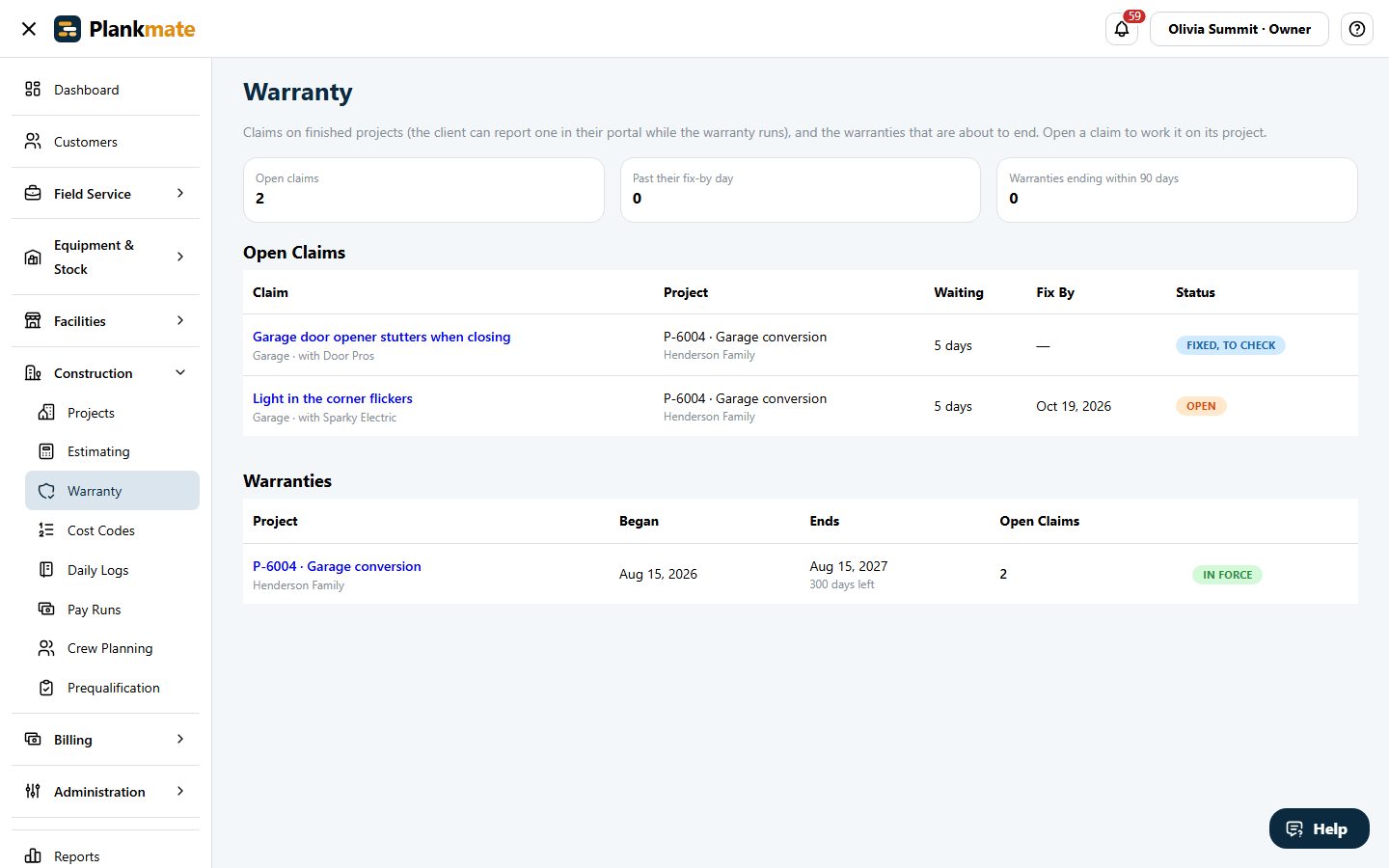
Claims on finished projects land in one place, with how long each has waited, and your warranties are listed by how close they are to ending. A cash report shows, for every open project, what you have billed and been paid, what the client still owes, and what you owe your subcontractors.
- Open warranty claims across all projects, oldest first, with the fix-by day
- Warranties running, ending within 90 days, or just ended
- Cash position by project: billed, received, overdue, retainage held, costs to date and subcontractor balances
The Paperwork That Follows a Project
Change orders the client signs, progress draws with retainage, a schedule chart with dependencies, daily logs with photos, RFIs and submittals, a punch list and warranty claims.
- Documents with electronic signatures and a certificate of each signature
- Optional pay runs: pay several subcontractors at once by bank transfer with a standard ACH file for your bank, vendors entering their own bank details, and a call-back verification before anyone is paid
- Reports across all your jobs: job cost and forecast margin, work in progress with over and under billing and backlog, cash position, and subcontractor spend
- Optional specifications with revisions, listed with the submittals and RFIs that name each section
- Optional crew planning: put technicians on projects by the day and see week by week who is free and who is double booked across projects and service visits
- Optional vendor prequalification: a questionnaire with red flags you set, approvals that expire, and a rule that only qualified vendors can be invited to bid
- Optional transmittals that record what was sent to whom and whether it was acknowledged, with a correspondence log
- Optional incident reports from the field with investigation, corrective actions and days since the last recordable
- Optional change events with a likelihood-weighted forecast of the final cost and margin, purchase orders (committed cost until billed), drawing sheets with revisions and pinned notes, and signed time and material tickets that become change orders
- Optional project meetings: agenda, who came, minutes and action items, with the minutes emailed to everyone who was there
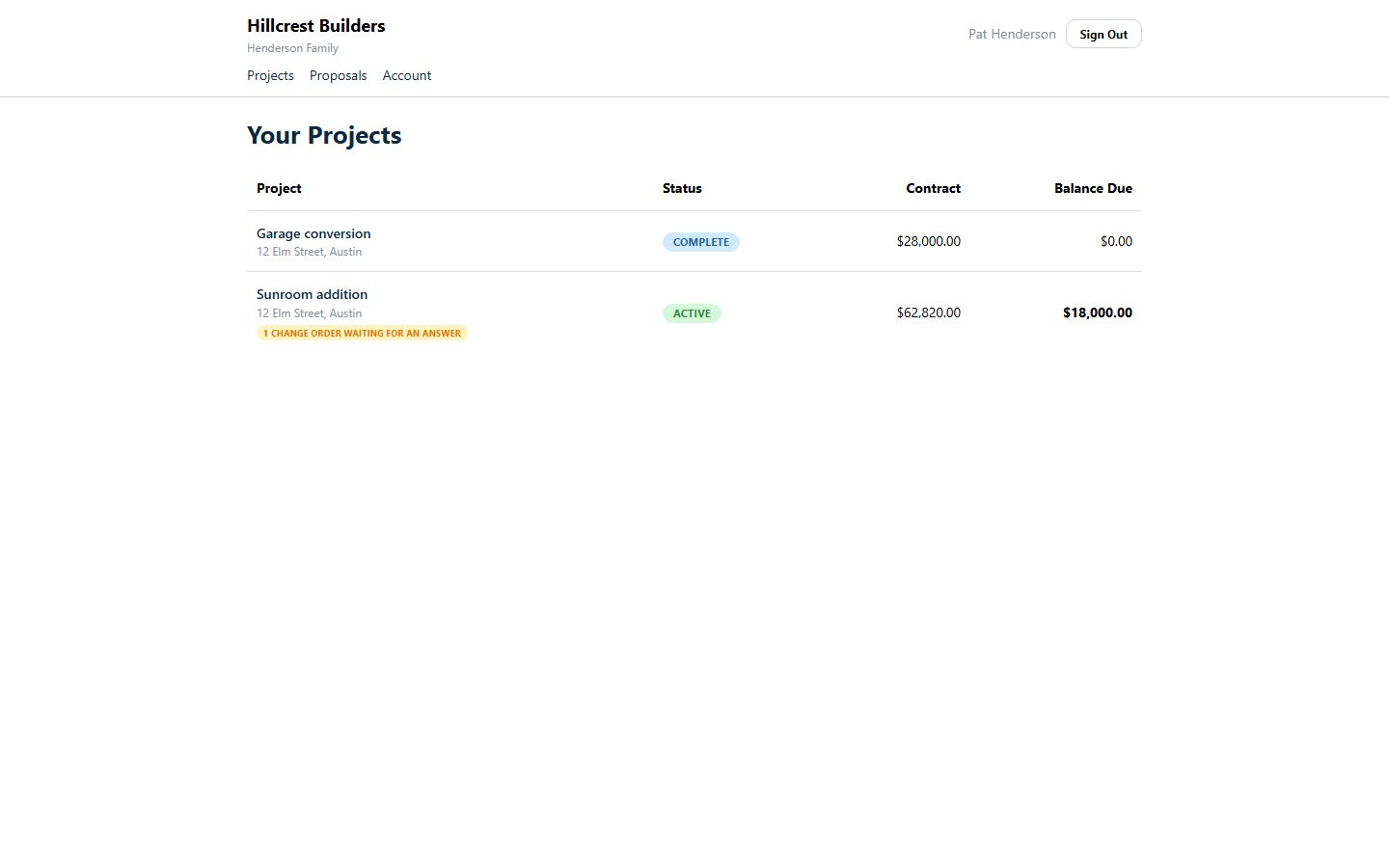
- The client portal shows progress, photos, approvals and draws
Find Anything in Your Daily Logs
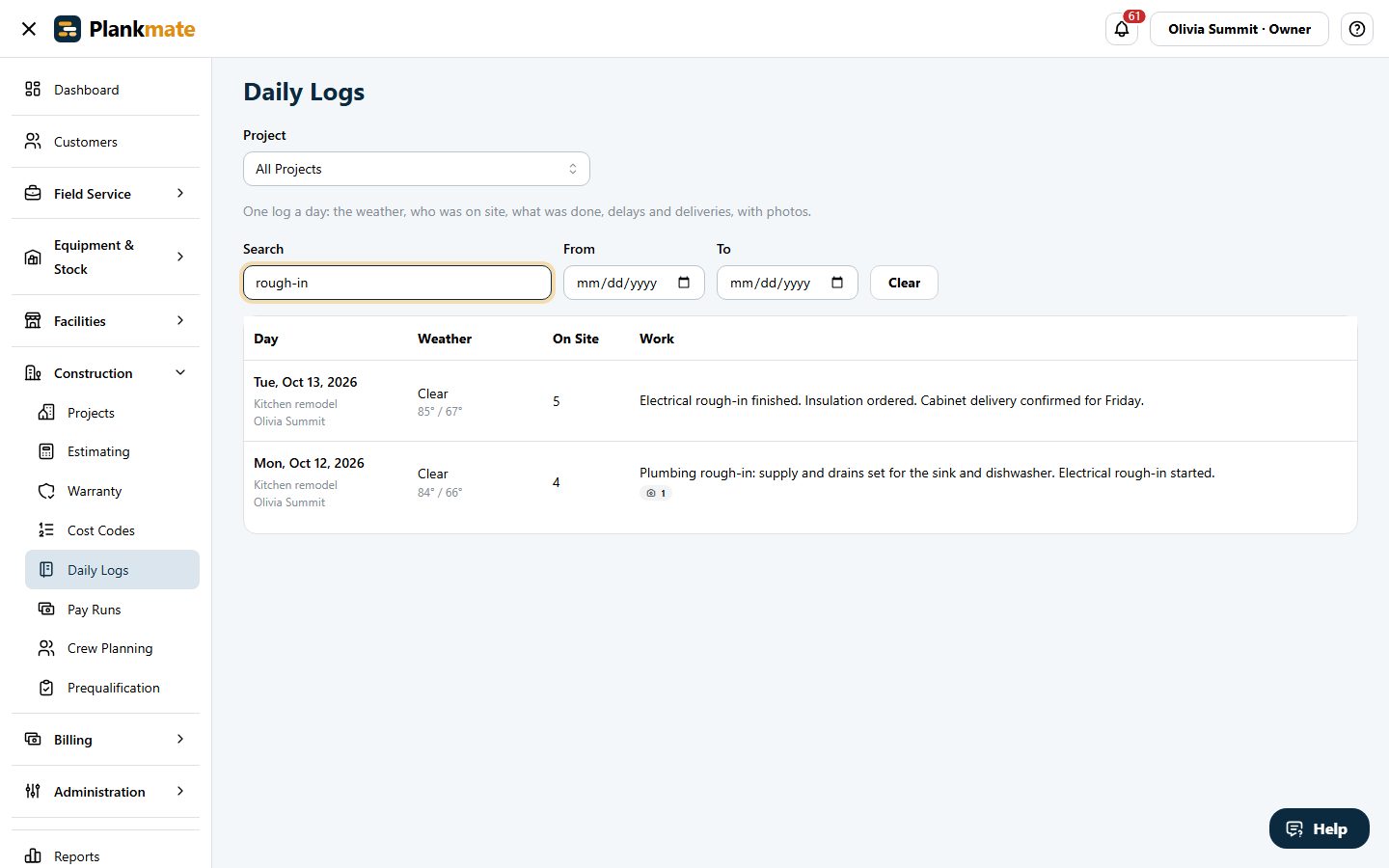
Search every daily log for any words: a delay, a delivery, a visitor, a crew, a safety note. Narrow it by date, for one project or all of them, and see where in the log each match was found.
- Every word you type has to be in the log, in any part of it
- A match in the delays or the safety notes says so, so you know why it came up
- Optional purchase orders: scan a delivery in against the order, with each line linked to a part from your price book
In the Field, Without the Money
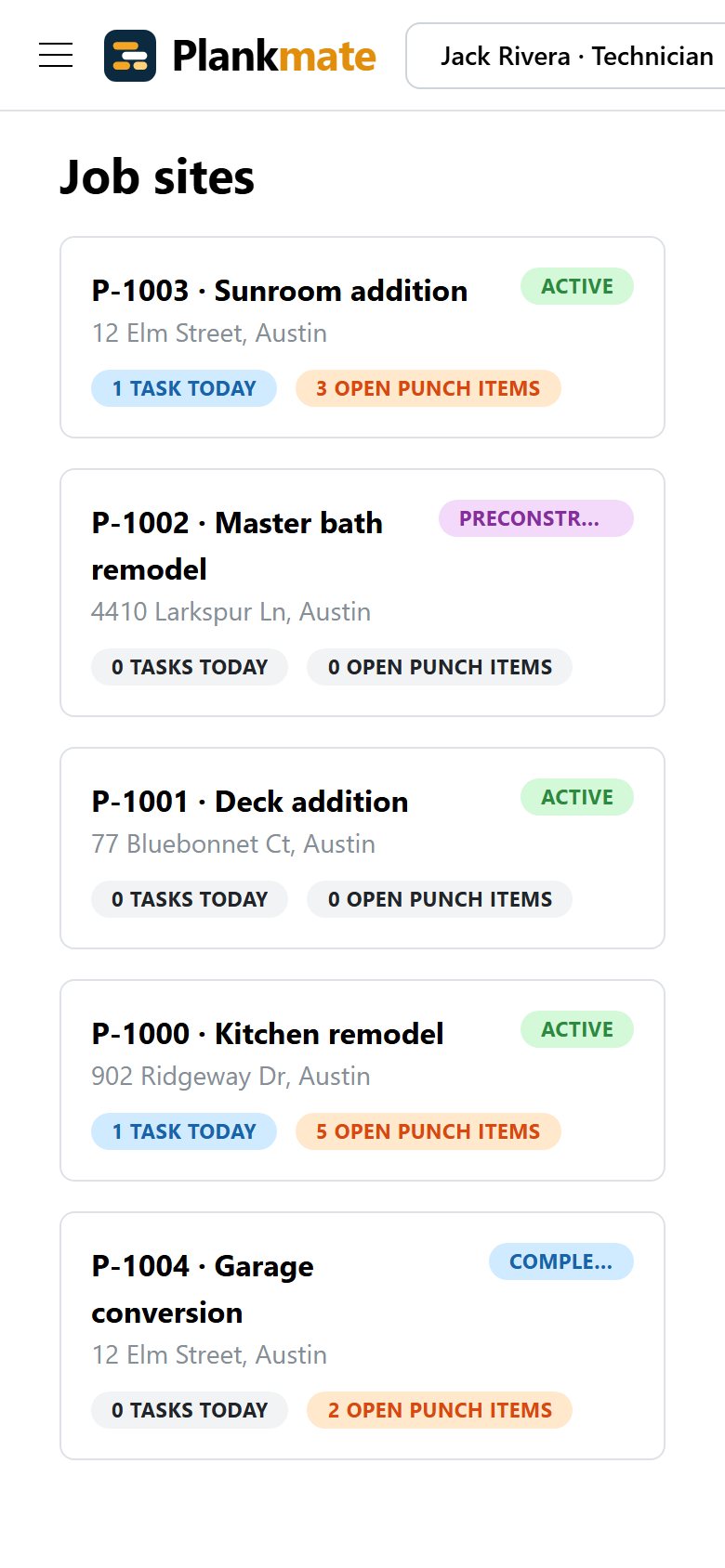
Technicians and site leads see Job Sites on their phone: the day’s tasks, the punch list, daily logs and plans. Never budgets or prices.
- Add photos to punch items and daily logs
- Optional timecards: hours by project and cost code, approved by the office into labor cost on the job
- Optional inspections: walk a checklist, mark each point pass or fail, and raise an observation with photos for anything that needs fixing
- Optional job checklists, ticked off on site
Run the Whole Job in One Place
Tell us how you build and we will show you a project from estimate to final draw.