
Facilities Maintenance
Tickets In, Vendors Out, Clients Kept Informed
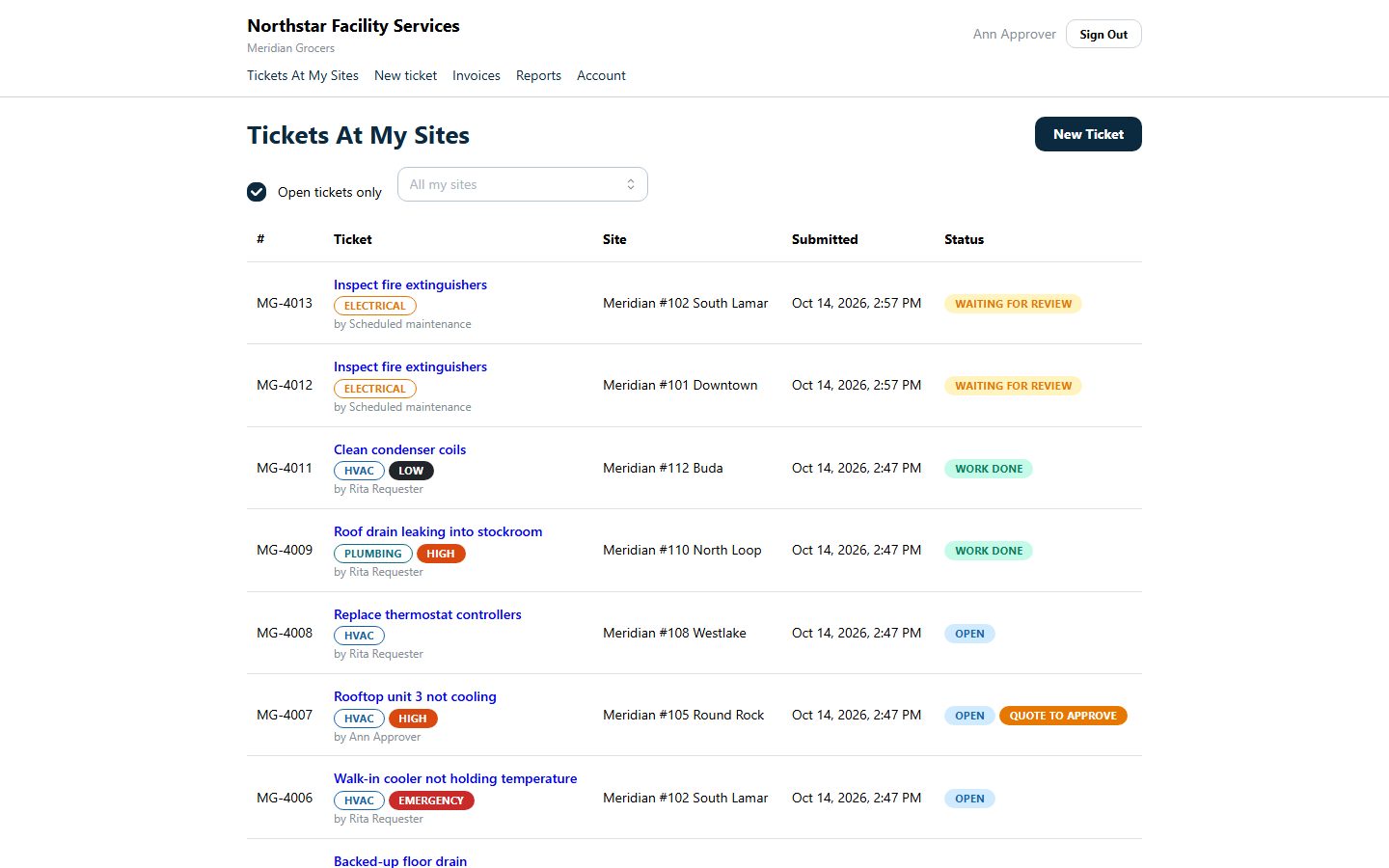
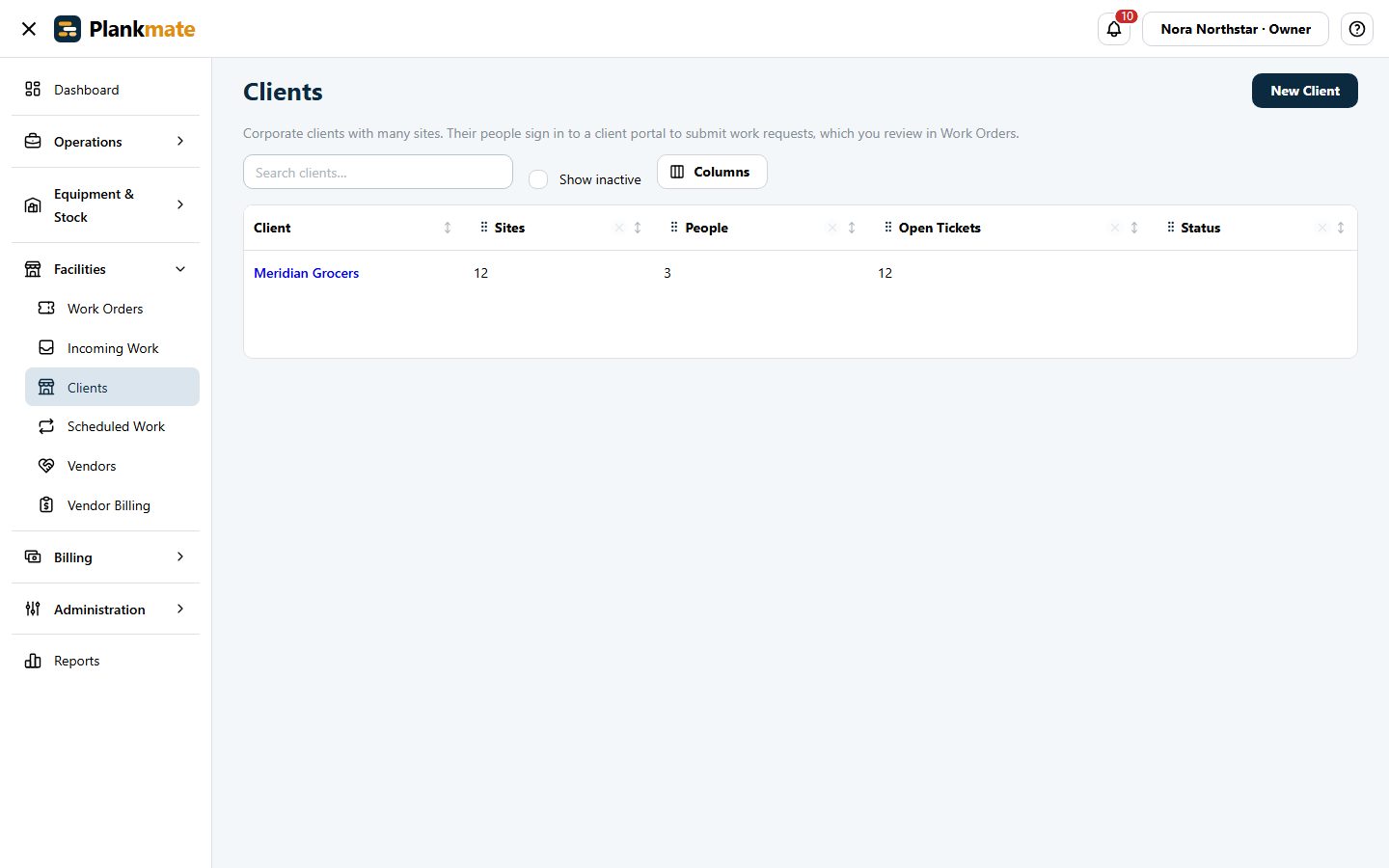
For companies that maintain sites for corporate clients. Their people submit tickets, you accept them, send the work to your own technicians or to vendors, and the client approves and pays within the terms you agreed.
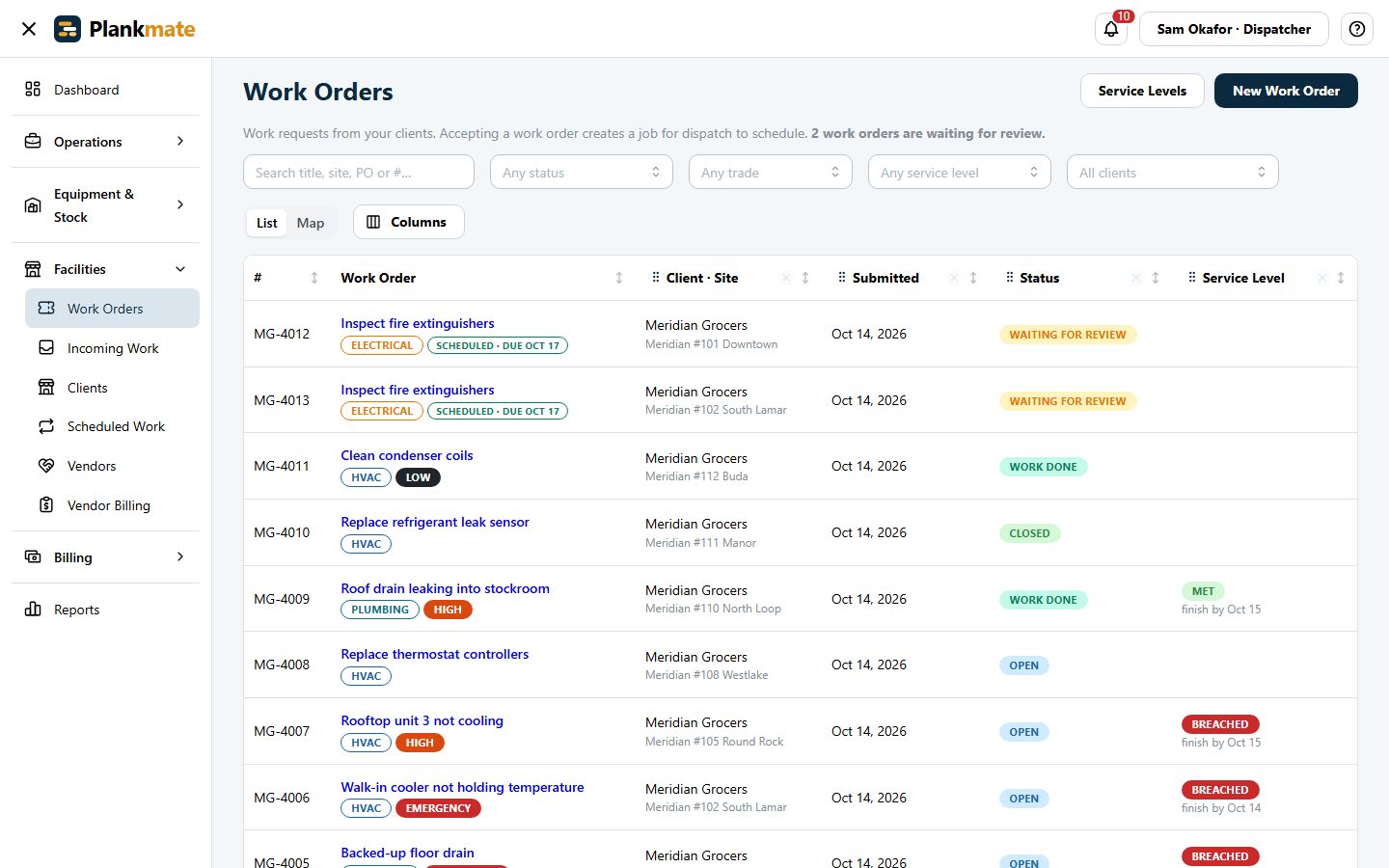
A Ticket Queue with Service Levels Built In
Clients submit tickets for any of their sites. Each one starts a clock against the service level you agreed, and you are told when one is at risk or breaches.
- Accept a ticket to create the job, or reject it with a reason the client sees
- Set response and finish targets by priority, per company or per client
- Purchase-order numbers required where a client wants them
- Recurring maintenance creates its tickets a few days before each due date
- The details a client’s work order carries: their PO number, a not-to-exceed amount, due and follow-up dates, site contact
- Every kind of record has its own number range, so J-1005 is your job and WO-5004 is a work order sent to a vendor
- Only send work to vendors? Switch the field-service screens off and your menus show just facilities
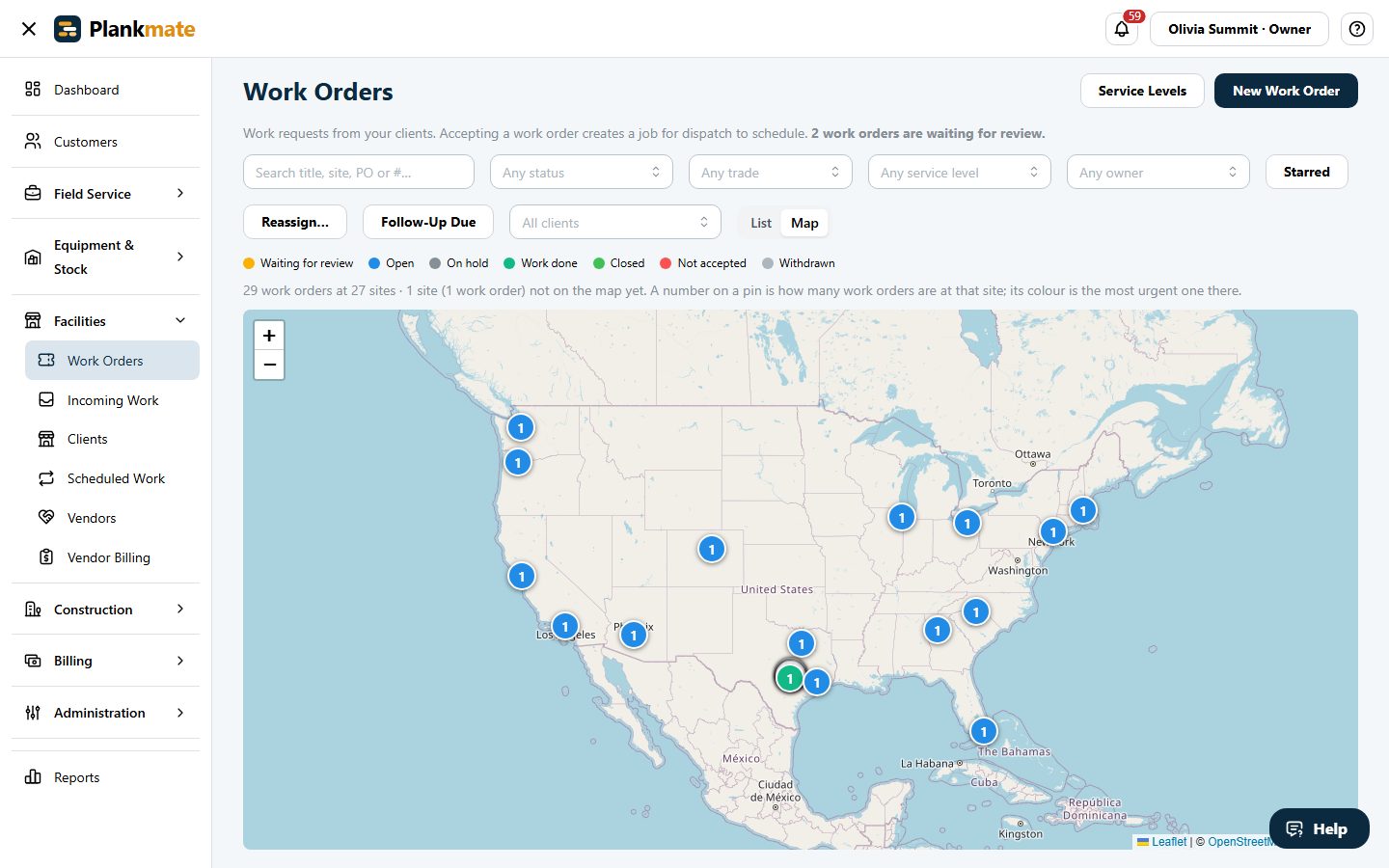
Every Work Order on a Map
Switch the work order list to a map and see every site with work at it, one numbered pin per site, coloured by the most urgent work order there. It follows the filters you already use, including the trade.
- Filter by status, client, trade, service level, owner or a search, and the map redraws
- Click a pin to see the site’s work orders and open one, or tap Navigate for directions
- Sites that are still being placed on the map are counted, not hidden
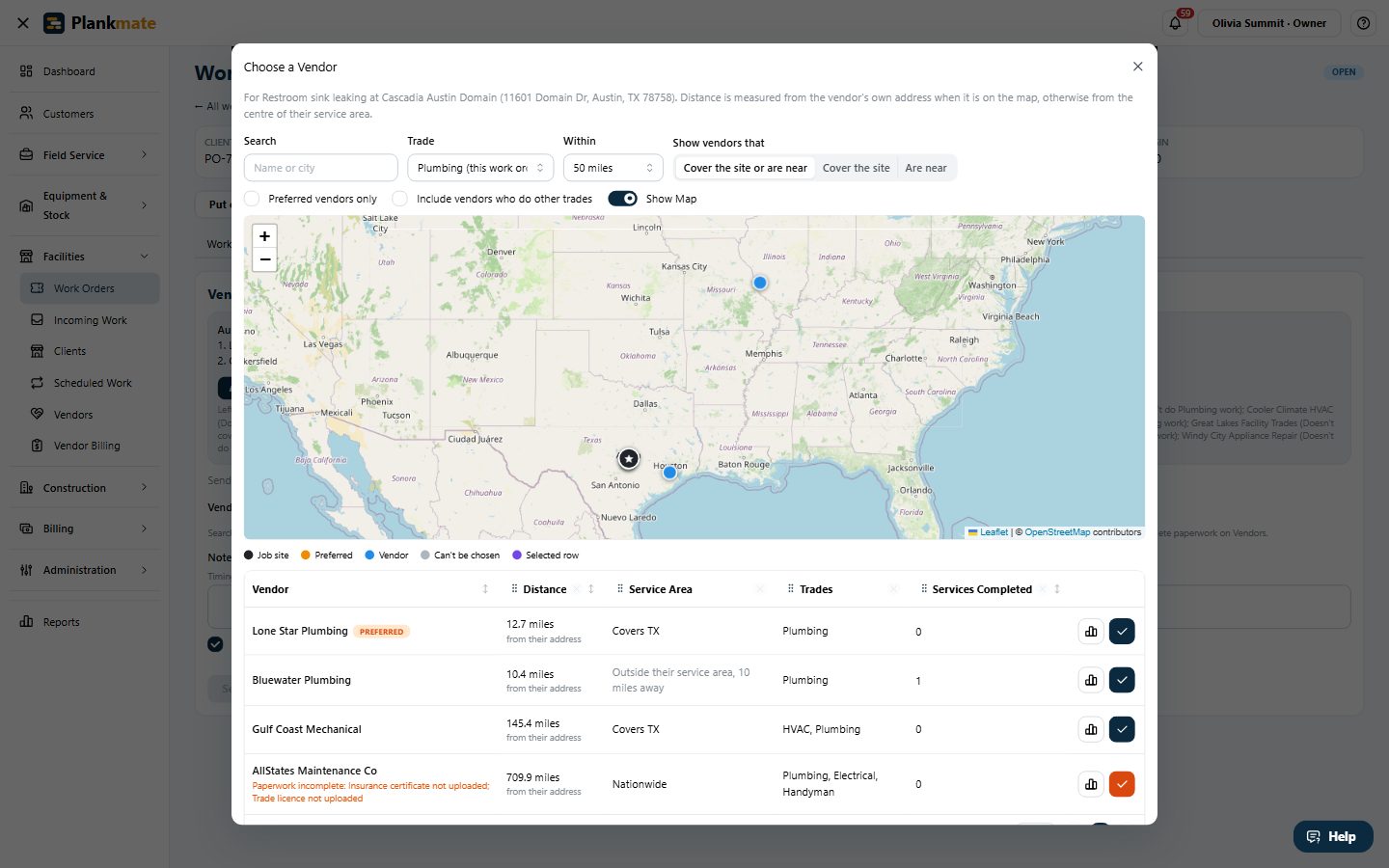
Choose a Vendor from a Grid, with a Map
With hundreds of vendors, a drop-down is no way to choose. Choose a Vendor lists those who do the trade and either work at the site or are within a distance of it, nearest first, and shows them on a map beside the job site.
- Distance from the vendor’s own address, or the centre of their service area; narrow it to vendors who cover the site, or are near it
- See each vendor’s service area, trades and how many services they have completed for you
- Open a vendor’s scorecard without leaving the list: how fast they answer, whether they finish on time and bill what they quoted
- Preferred vendors first, and vendors the client does not want are shown greyed out with the reason
See Where You Have Vendors, and Where You Do Not
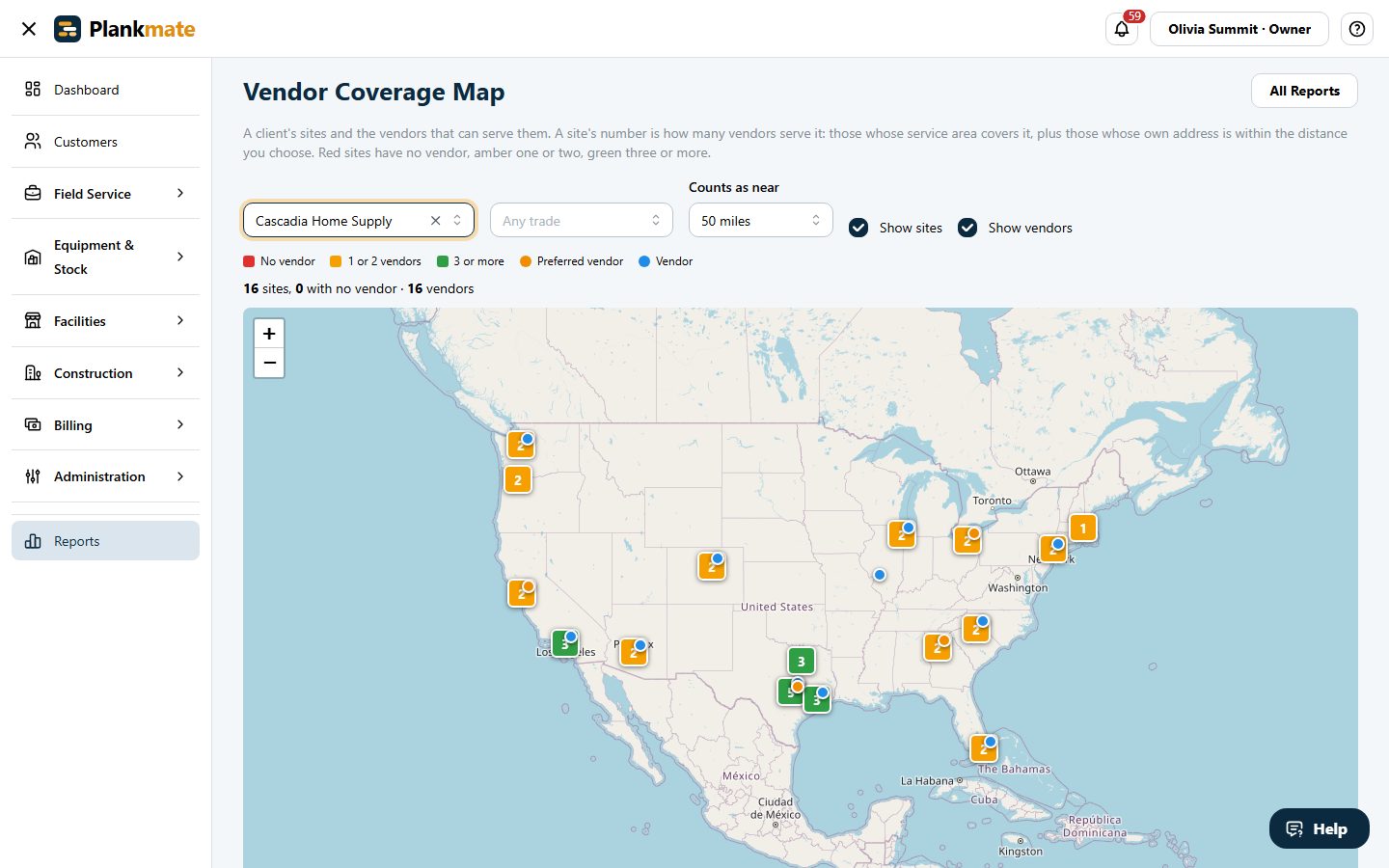
Pick a client and a trade and see all of their sites on a map with the vendors that can serve them. Each site shows how many vendors cover it, so you know how well the system supports a client’s needs before you promise anything.
- A site is red with no vendor, amber with one or two, green with three or more
- A vendor counts when their service area covers the site, or their own address is within the distance you pick
- A list below puts the thinnest-covered sites first, so you know where to recruit
Send Work to the Right Vendor, Automatically If You Like
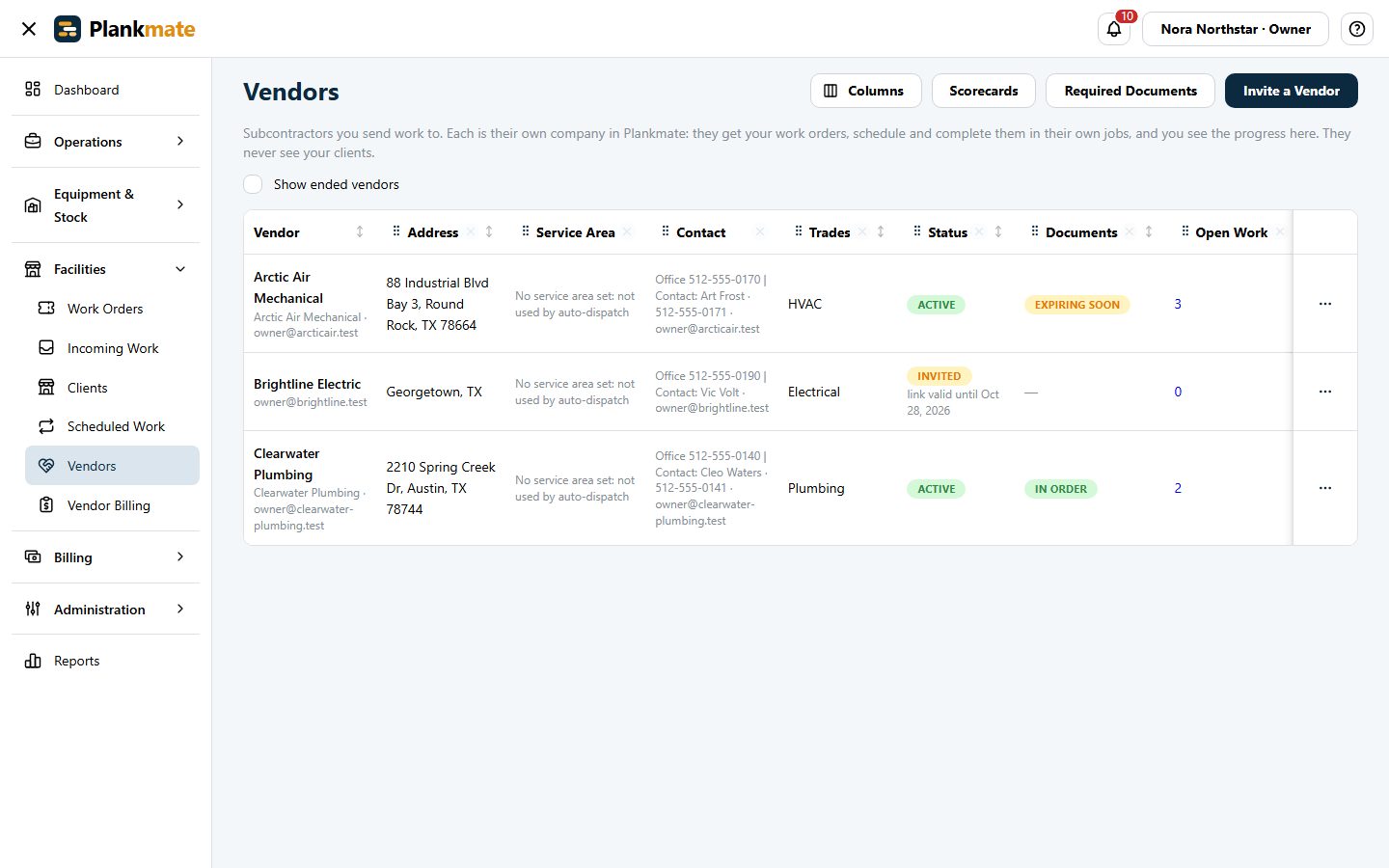
Vendors are companies in Plankmate. Send a work order by hand, or let Plankmate offer the ticket to the vendor who does that trade and covers that site, preferred vendors first, then the closest.
- Each vendor says where they work: nationwide, whole states, or a distance from a postal code
- The vendor gets an email with Accept and Decline buttons that need no sign-in
- No answer in time, or a decline? It goes to the next vendor, and you are told when none are left
- Keep a client’s unwanted vendors out; see every vendor’s record on a scorecard
- Write down the rates each vendor has agreed, by trade, after hours and trip charge
- A current-status line on every work order (“Parts ordered, vendor back Thursday”), kept up to date by the coordinator
Bring Your Vendors in from a Spreadsheet
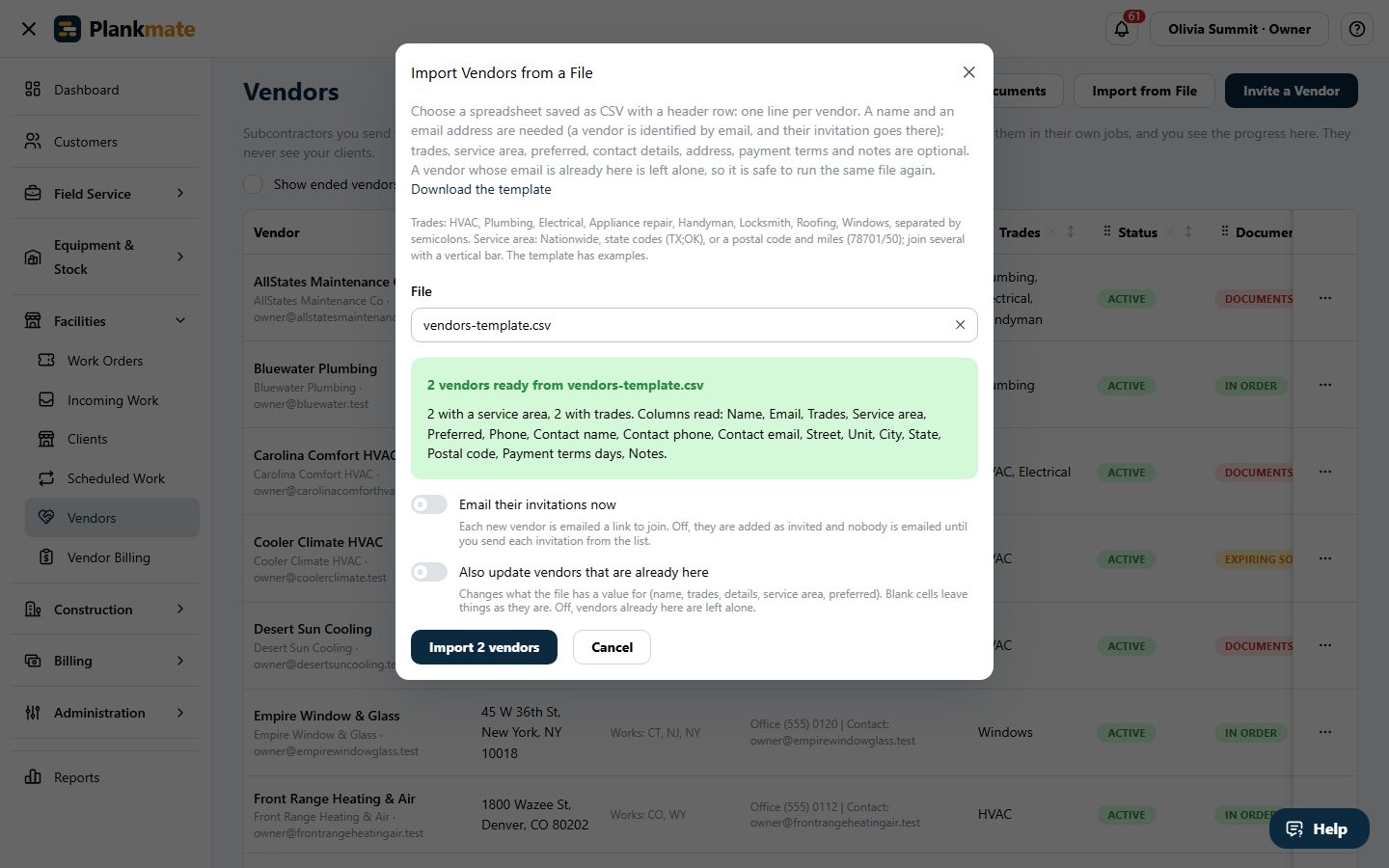
Hundreds of vendors already in a list? Download the template, fill it in or paste your own columns, and import. Each is added as invited, with their trades, where they work and whether they are preferred.
- The file is checked first, and every problem is listed by row before anything is added
- Their invitations go out only when you say so
- Run the same file again safely: vendors already there are left alone, or updated if you ask
- Service areas as Nationwide, state codes, or a postal code and miles
Quotes, Approvals and Margin You Can See
Require a quote before work starts. Approve it, ask for changes, or turn it into your own quote for the client with your markup. The client approves in their portal within the limit you agreed.
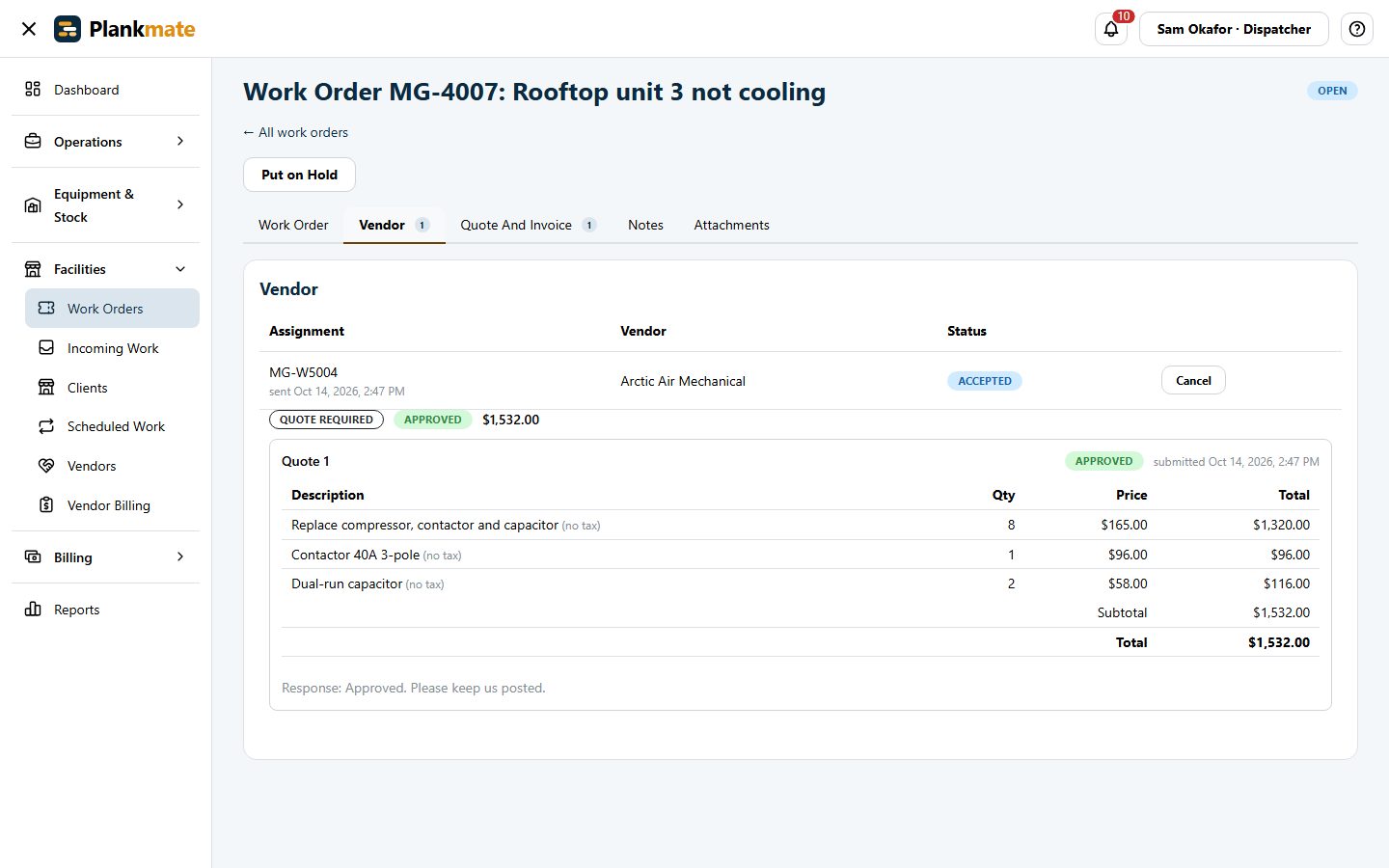
- Vendors’ invoices checked against the quote they were approved at
- The client’s agreed rates and the vendor’s sit beside the quote, and a labour line priced above the vendor’s agreed rate is pointed out
- See what you owe vendors, what is overdue, and your margin on each ticket
- Clients never see the vendor, and vendors never see the client
Vendor Compliance Without Chasing
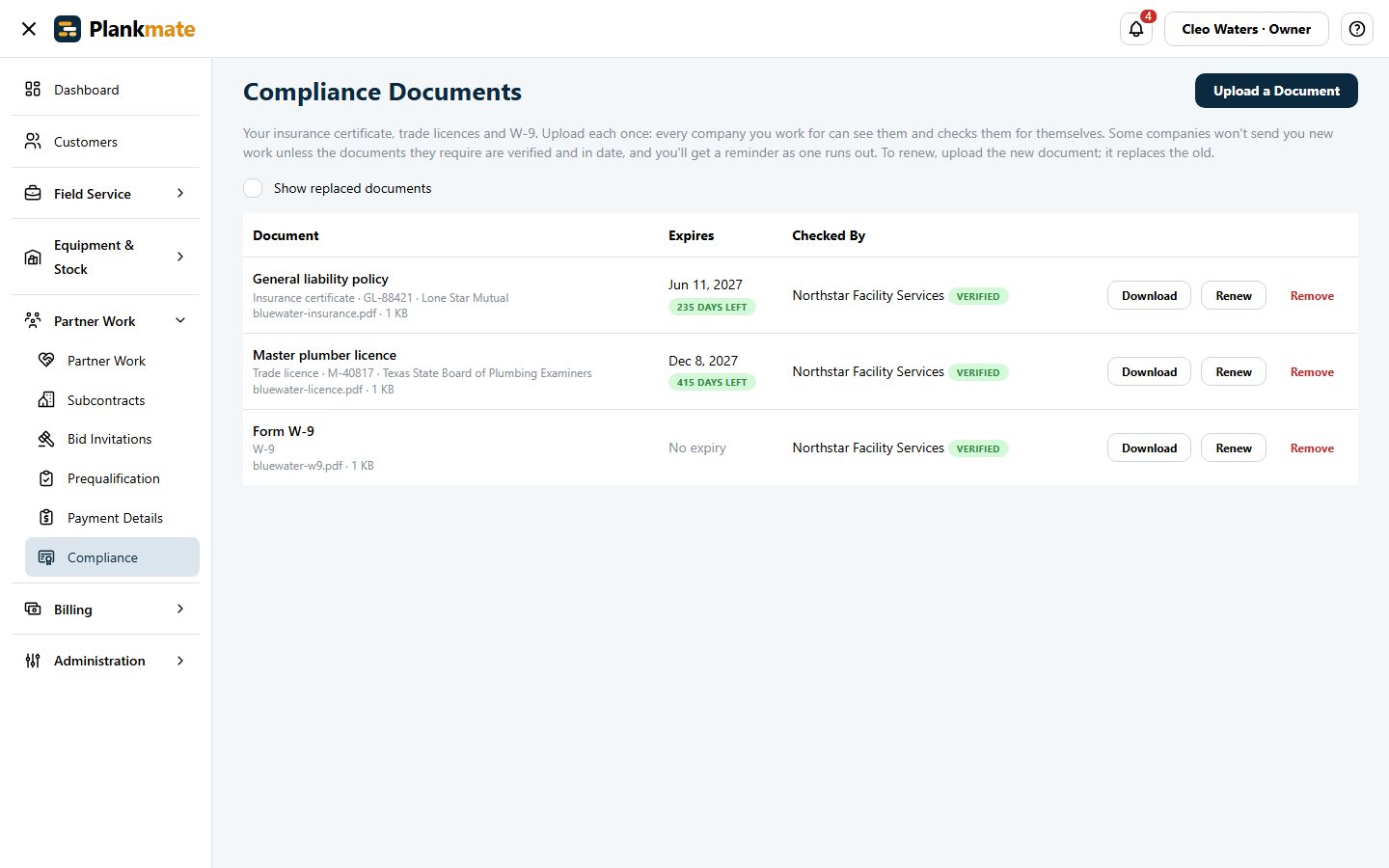
Choose the documents you require: insurance, licences, a W-9. A vendor missing a verified, in-date copy cannot be sent new work, unless you choose to allow it: then they can be picked after a warning that incomplete paperwork could delay their payment. Vendors upload once, and you check them for yourself.
- Reminders as documents run out
- One click to ask a vendor for what is missing
- Optional: let your team choose a vendor whose paperwork is incomplete, with a warning, instead of blocking them
- Scorecards: how often they accept, how fast they answer, whether they finish on time and bill what they quoted
Work That Arrives from Other Places
ServiceChannel and Corrigo can send you work orders and they arrive as tickets; ServiceChannel is updated as you start and finish the work. Work orders emailed to an address you set up arrive ready to check and turn into tickets.
- New locations wait once for you to choose the site; later ones flow by themselves
- Optional: tickets owned by a dispatcher, with a follow-up date and return visits linked to the original
- Optional: cancellation reasons you can report on
Reports on the Work and the Money
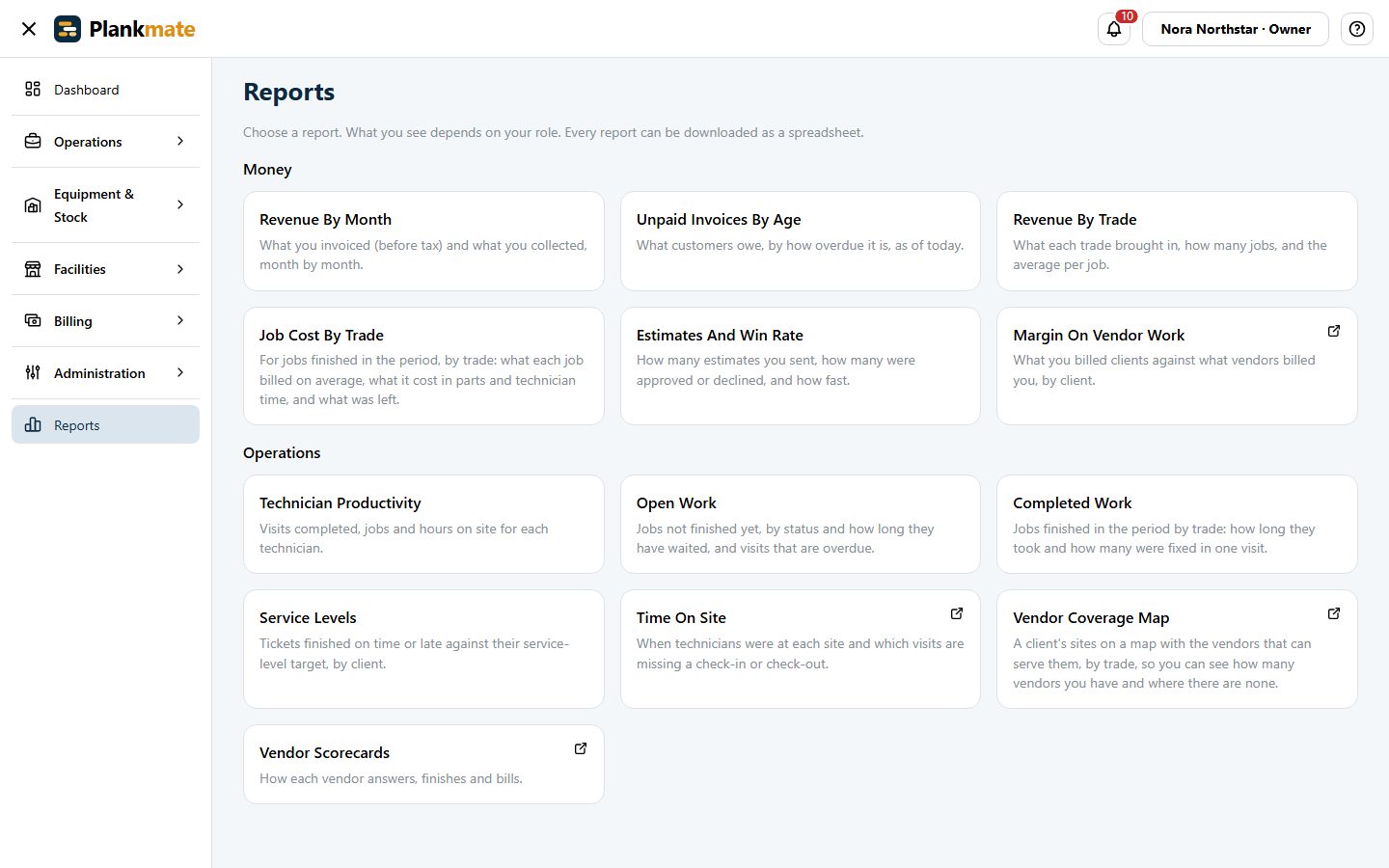
See how you are doing against the service levels you promised, what you make on vendor work, and how long technicians and vendors spend on each site. Every report downloads as a spreadsheet.
- Service levels: which clients’ tickets were finished on time, and which are already late
- A vendor coverage map: a client’s sites with the vendors that can serve each one, by trade, so you can see where you have plenty of vendors and where there are none
- Margin on vendor work, vendor scorecards, and time on site with any missing check-ins listed
- Your clients get reports of their own in their portal: tickets by month and by site, and spend for the people who approve it
Keep Every Site, Ticket and Vendor in One System
We will set up a demo with a client, a few sites and your kind of work.